# Frequently Asked Questions - Affiliate
The following is a collection of frequently asked questions and some best practices for you to get the most out of ReferOn
# When will I receive my payment?
ReferOn is not responsible for any payments made towards the affiliates. Should you experience any delays in your payments, please continue to contact your affiliate manager for updates.
# How can I get a tracker?
There are multiple ways to obtain a tracker:
1 - Navigate to Media - Campaigns, find and select your chosen campaign, i.e. URL, for example Italian Homepage. Once selected, go to Create media item. Fill in the details, such as traffic type, marketing source and geo.
2 - Media - Media Items, go to Create media item. Select the campaign from the list. You can type and wildcard search where required. Fill in the details, such as traffic type, marketing source and geo.
3 - Navigate to My Company/My Account (depending on access) and go to media item tab, select the campaign from the list. You can type and wildcard search where required. Fill in the details, such as traffic type, marketing source and geo.
Once created, a media item appears and you can either extract the tracker via the Copy clipboard icon or download the media item should you need information in bulk.
More information can be found here: [Extracting a Tracking Link](https://help.referon.com/link/147)
# What variables can I use?
Referon can accept any variables in your trackers.
The most common 9 variables are found in Reports - General as separate columns:
- var1
- var2
- var3
- var4
- var5
- subid
- pubid
- clickid
- click\_id
However, if you are using anything outside of these, such as ‘webmasterid’, this can be collected in the ‘other’ the 10th column in dynamic variables group.
Note: if you are using postbacks, ensure the variable matches to your callback url requirements.
# How do I use the reports and get an API?
The reports in ReferOn are a condensed version of most affiliate systems you might be familiar with. We have a single area of reporting which allows you choose any metric for any time split over any date range.
Configure it in a few steps:
1. Select your metrics - i.e. by campaign, by media item, by geo etc. - multiple items can be selected.
2. Select your date range - Various fixed date ranges can be used for example Current Month, Current Quarter, etc
3. Select any filters (if applicable) - Multiple items can be filtered at any one time, for example 1234,5678
4. Select your split by - For example total, per year, per month or per day.
5. Click Generate Report
Should you require an API for further third party tools, after generating the report do the following steps:
1. Click Create Preset
2. Insert a name
3. Enable API
4. Copy Link
Once copied, you can take the API link to any API connector and run the data freely. If you have created the report in a custom range, when you extract the API you can also freely change the date range without needing to regenerate the code.
More information can be found here: [How to Create API Reports](https://help.referon.com/link/160)
# How can I change my payment method?
Payment methods are stored at the company level within ReferOn. A single company can store multiple payment methods granting the flexibility of applying a payment method to some of their accounts and another to others.
If you are not using a master login you do not have the functionality of adjusting the payment method.
If you are using a master login, follow the below steps:
1. Navigate to Edit - Company Information or Profile - Payment Methods.
2. Create payment method and select your chosen fields
3. Repeat as necessary
4. Go to My Company and bulk edit the affiliate account to the correct payment method
More information can be found here: [Adjusting Payment Methods](https://help.referon.com/link/137)
# How to contact my Manager?
Please provide your username and brand you are promoting and we will put you in contact with your manager.
# How to change password?
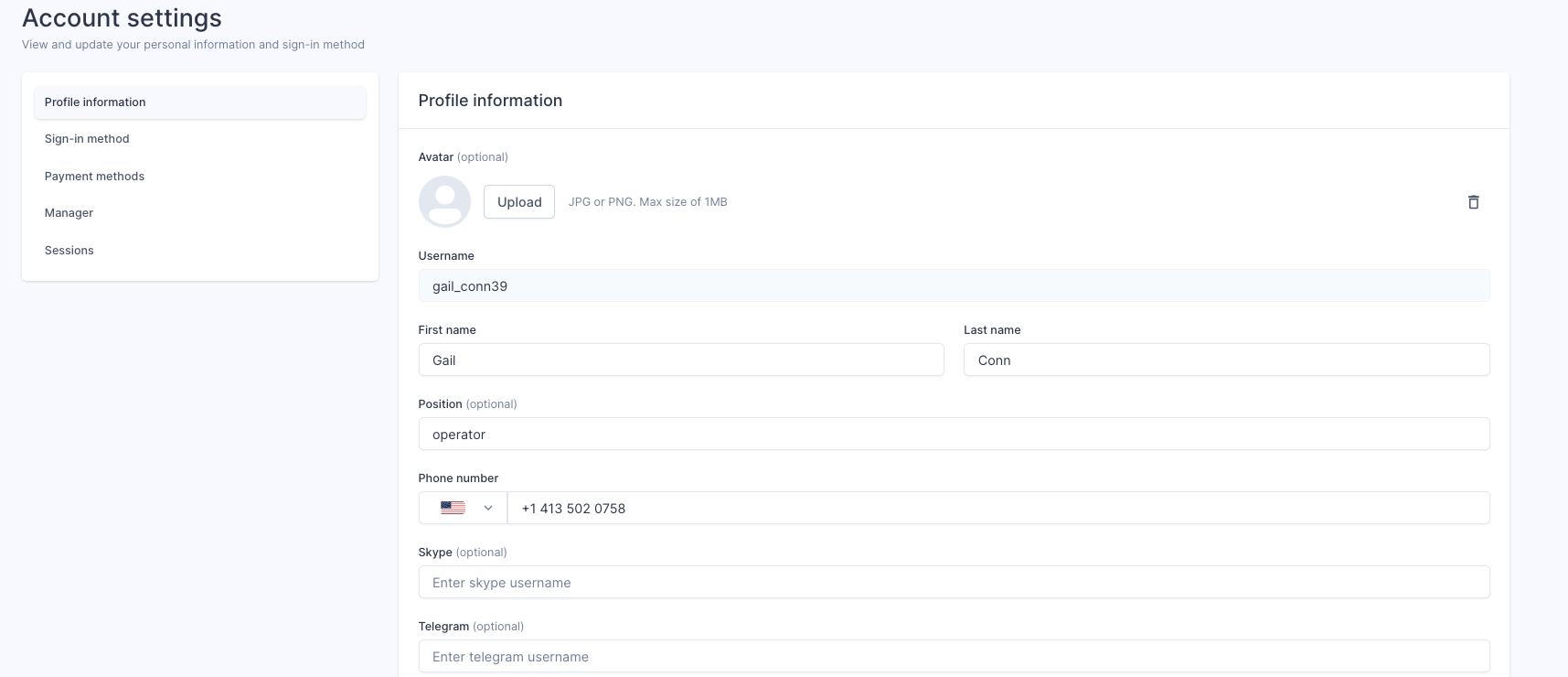
Found to the bottom left of the system, this allows a user to adjust their profile information, such as name, password, title, etc.
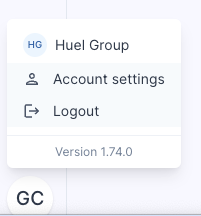
Click the avatar of the user, then Account Settings.
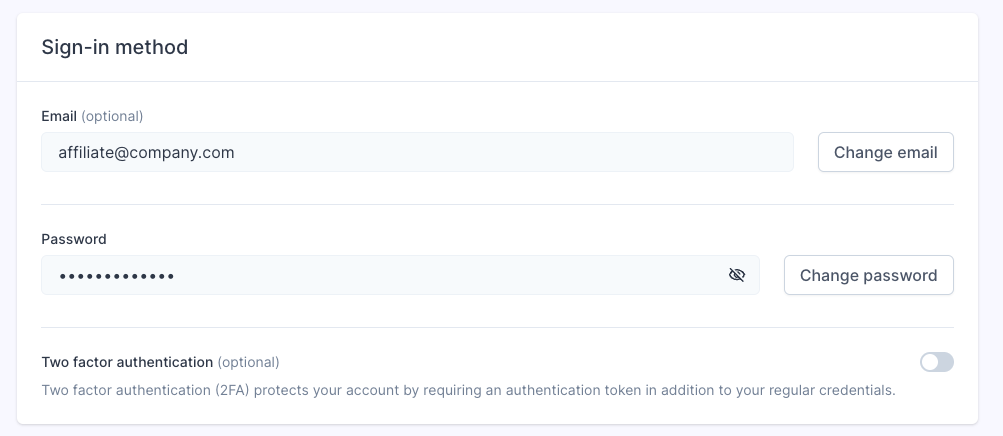
Navigate to sign-in method. You may also turn in / off Two Factor Authentication here.
Read more about Account Settings: [Account Settings](https://help.referon.com/link/29)
# How can I delete my account?
To deactivate your account please contact your Manager.
# How to Log out?
1. Navigate to Account Settings (bottom left of the system).
2. Click the avatar of the user. Logout.
Read more about Account Settings: [Account Settings](https://help.referon.com/link/29)
# Where can I see the list of my sub affiliates?
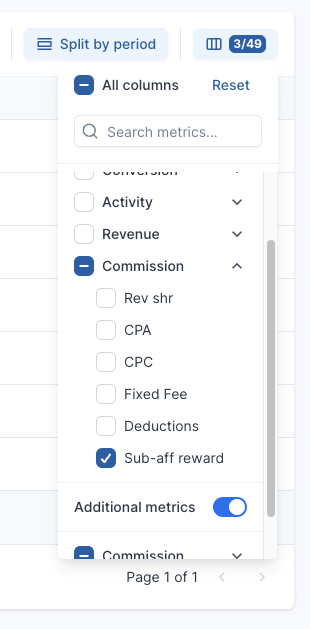
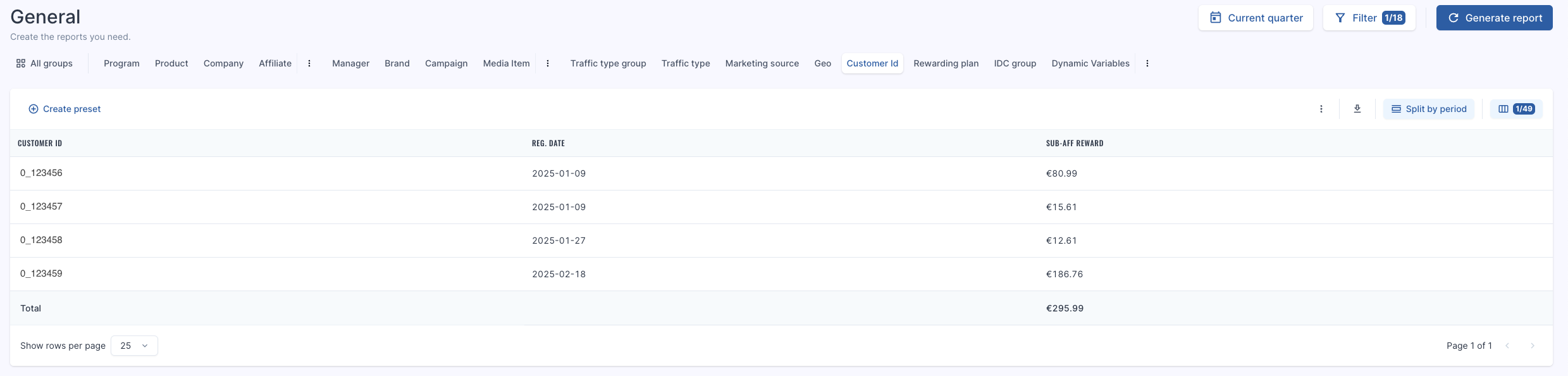
This can be found in the General Report.
- Choose Affiliate Program Name in the Brand filter.
- Choose the "Customers" reporting group.
- Choose metric “Sub-aff reward”.
- Generate your Report.
- Customer id shows Sub affiliate id.
# I can’t login in my account, error 429
Error 429 is equivalent to login timeout error. You have attempted multiple logins recently and it has an IP block for 10 minutes.
If error persists more than 10 minutes, please contact your Affiliate Manager.