# General

# Creating an Account

To create an account on your affiliate program navigate to [https://ro-affiliate.YOURAFFILIATEPROGRAM.com/registration](https://ro-affiliate.AFFPROGRAM.com/registration) and follow the login steps:  
  
![Screenshot%202024-10-03%20at%2015.57.10.png](https://help.referon.com/uploads/images/gallery/2026-09/b7fef835299358f673d306bb446e707d1752a458.png)

1. Start with username, email and password.  
      
    ![Screenshot%202024-10-03%20at%2015.57.17.png](https://help.referon.com/uploads/images/gallery/2026-09/8645320f23420d80d29ea23fdccd065eb1eb4b65.png)
2. Choose option to create a Company or join an Existing Company (see 2.1).  
      
    ![Screenshot%202024-10-03%20at%2015.57.39.png](https://help.referon.com/uploads/images/gallery/2026-09/8f1c465fe06468a0b07d37ad8b1944fba5b4f115.png)  
      
    2.1. Join an existing company using Account UID (Company Identificator).  
      
    ![Screenshot%202024-10-03%20at%2015.58.53.png](https://help.referon.com/uploads/images/gallery/2026-09/21202cca0daf52246f7828a466c6ac4a113f9c5b.png)
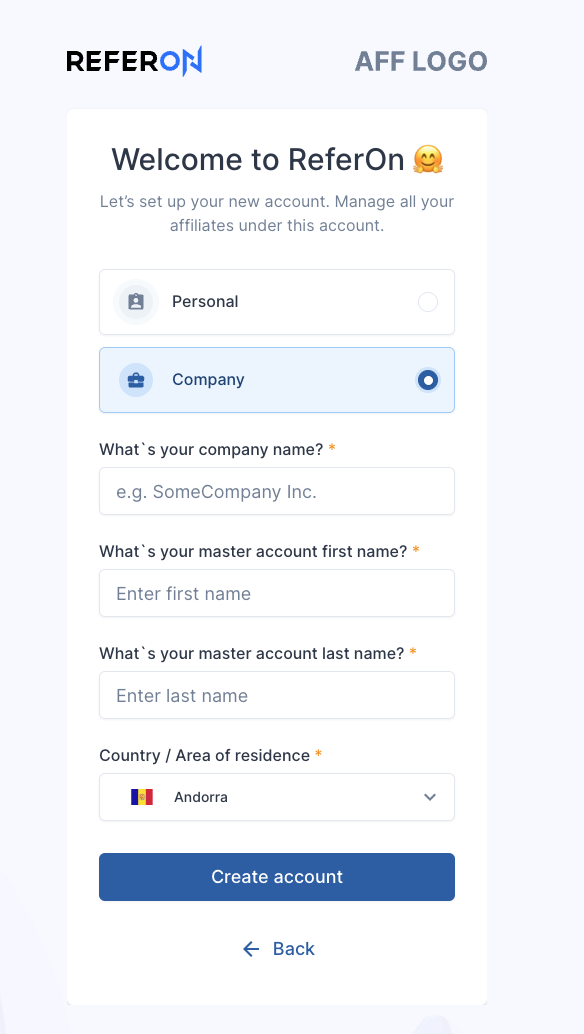
3. Create a new one. Choose whether it is a Personal or Company account.  
      
    <p class="callout info">The differences are only in the Company Name:</p>
    
      
    ![Screenshot%202024-10-03%20at%2015.59.02.png](https://help.referon.com/uploads/images/gallery/2026-09/1db049710e30a8abf0557f0c53a27cea4d114f14.png)
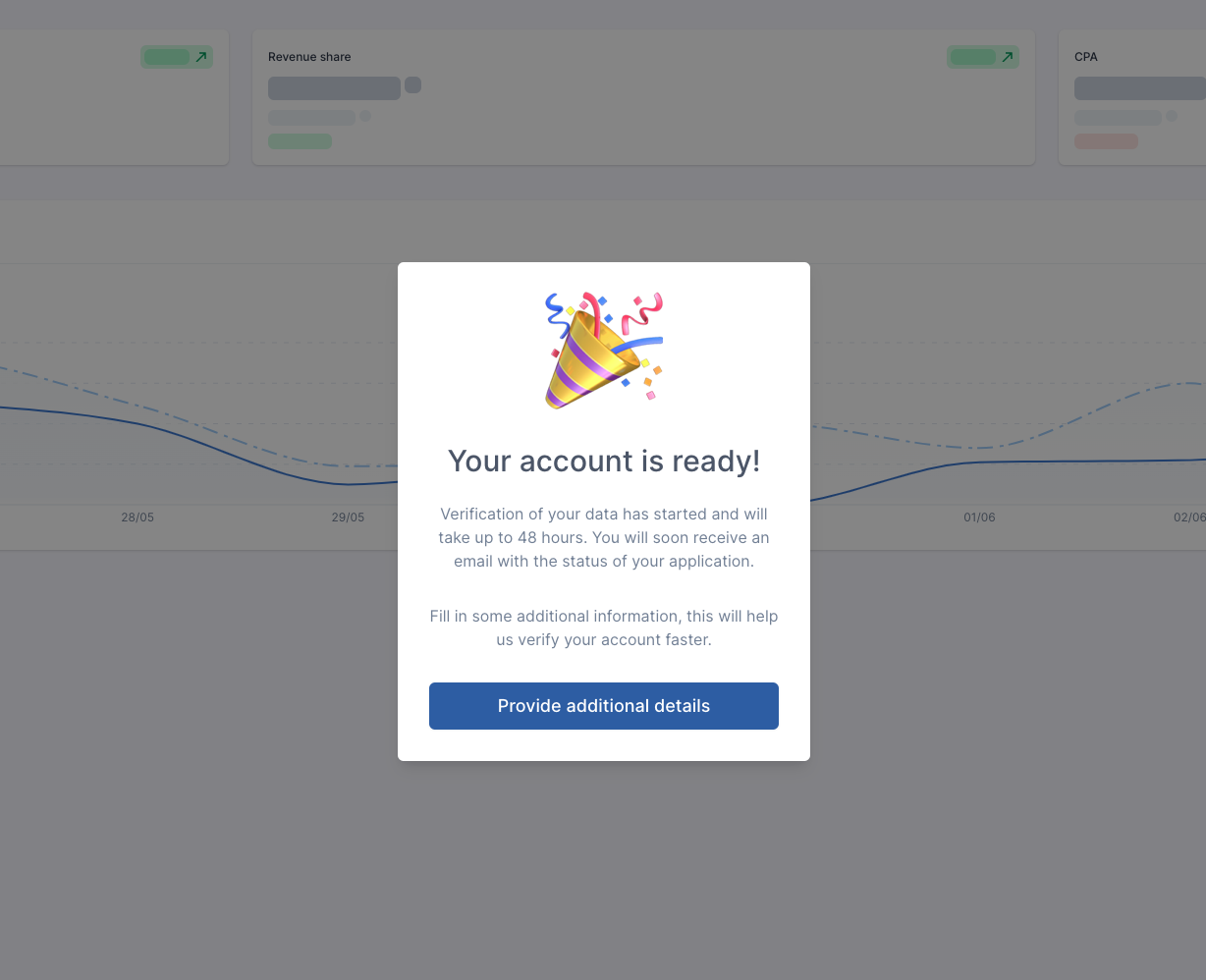
4. Your account is ready. You may now fill in additional information, such as contact details, traffic source, payment methods.  
      
    ![Screenshot%202024-10-03%20at%2016.01.17.png](https://help.referon.com/uploads/images/gallery/2026-09/897b203cfe8809b0db98fa9b3a35eca17fa2c80e.png)
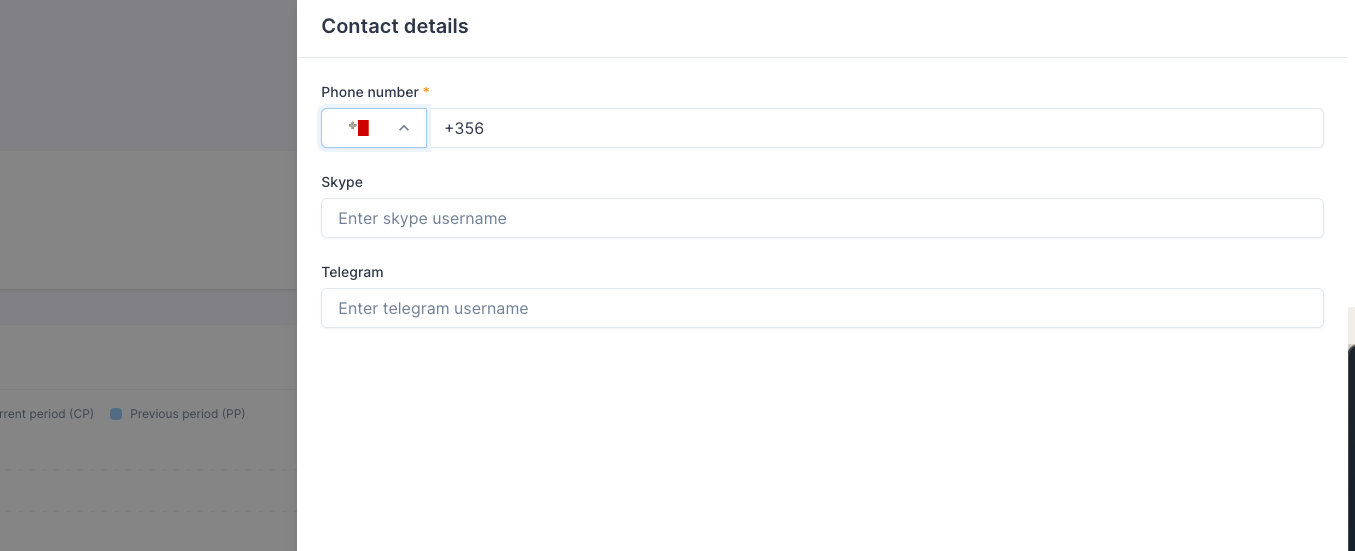
5. Fill in your contact details.  
      
    ![Screenshot%202024-10-03%20at%2016.01.42.png](https://help.referon.com/uploads/images/gallery/2026-09/3914c0aa523fdab6ad8629460b55394e515882e9.png)
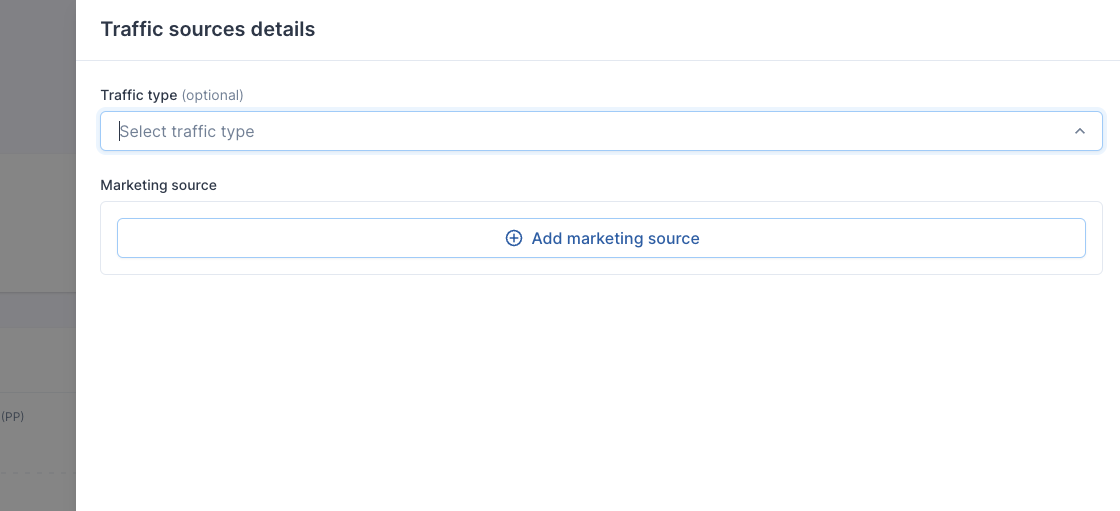
6. Fill in your Traffic Source details.  
    <p class="callout info">The Traffic Type list is based on the operators list they have created. Should you need one that is not in the list, please contact the affiliate team.</p>
    
      
    ![Screenshot%202024-10-03%20at%2016.01.51.png](https://help.referon.com/uploads/images/gallery/2026-09/b9478734721906fdb7c22bebe1aa158a2dbcd528.png)
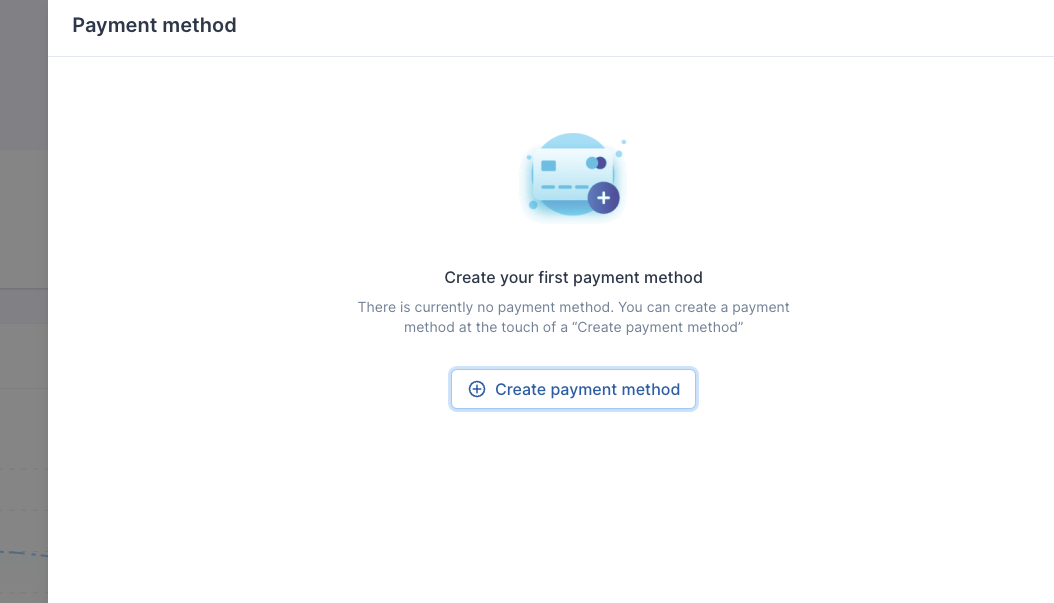
7. Fill in payment details.  
      
    ![Screenshot%202024-10-03%20at%2016.02.18.png](https://help.referon.com/uploads/images/gallery/2026-09/f215652870032de453b3c31dccbf5624241510f6.png)
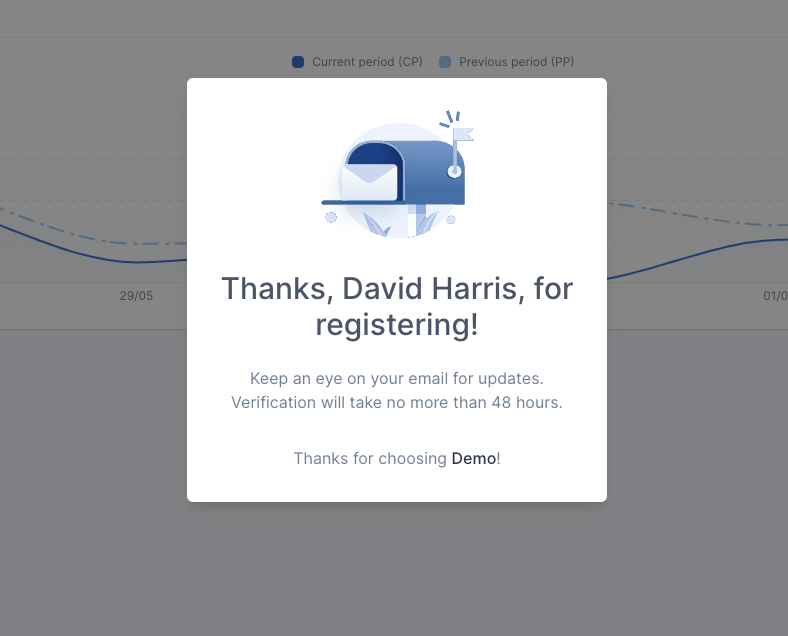
8. After additional information is filled in please await approval of your account. You will receive notification on your email address.  
      
    ![Screenshot%202024-10-03%20at%2016.02.23.png](https://help.referon.com/uploads/images/gallery/2026-09/aa544aa6082347e1dc481b967dd075f3c27afd20.png)

After you have been notified that the account has been approved, you can then go to: [https://ro-affiliate.YOURAFFILIATEPROGRAM.com/login](https://ro-affiliate.AFFPROGRAM.com/login) and use the username and password details given on sign up. (Also found in the notification email)

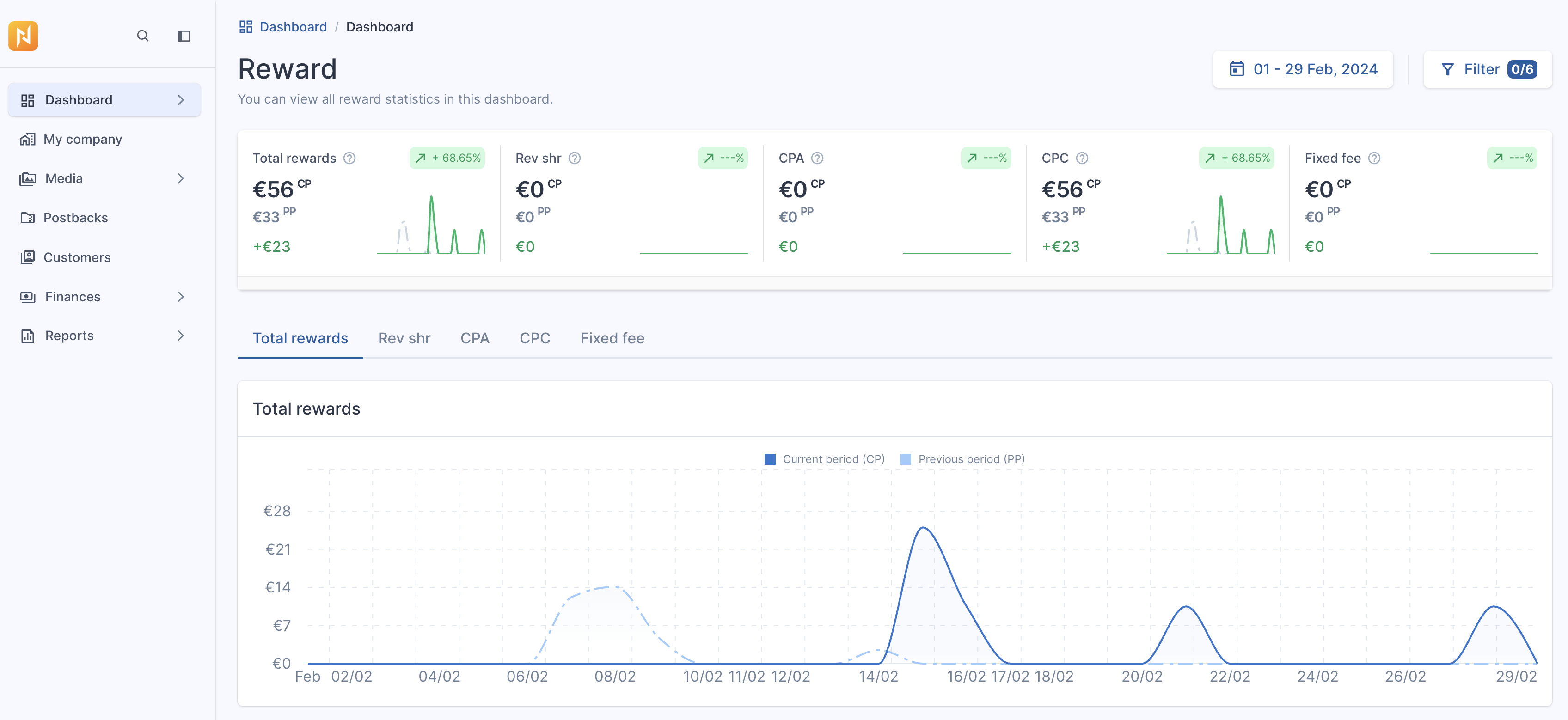
Upon log in and approval you will then see your dashboards.
![Screenshot%202026-03-17%20at%2013.42.42.png](https://help.referon.com/uploads/images/gallery/2026-09/e61b865bc5198bea0571d6bcfa9849d5d5a87cbd.png)

<figure class="table" id="bkmrk-the-instructions-in-"><table class="ck-table-resized"><colgroup><col></col><col></col></colgroup><tbody><tr><td><figure class="image image_resized">![Refie_notice.png](https://help.referon.com/uploads/images/gallery/2026-09/2a99a7b72b27813954f0677aa3675679009c5e31.png)</figure></td><td><p class="callout info">The instructions in this document are for Company Account Level. If you are logging in as an affiliate level, follow the same instructions as above BUT you will NOT have the filter of choosing 'Affiliate' in the system.</p>

</td></tr></tbody></table>

</figure>

# Profile Settings

## General

Found to the bottom left of the system, Profile settings provides access to additional system components, such as the release version of ReferOn, Language selector, Account settings, Company settings, ReferOn Guides and API section for developers.

<figure class="image image_resized" id="bkmrk-">![Screenshot%202026-08-04%20at%2015.09.01.png](https://help.referon.com/uploads/images/gallery/2026-09/e8af2fc56069a04ddd1429839c0cfb5fca677c9a.png)</figure><figure class="table" id="bkmrk-the-release-version-"><table class="ck-table-resized"><colgroup><col></col><col></col></colgroup><tbody><tr><td><figure class="image">![Refie_hat.png](https://help.referon.com/uploads/images/gallery/2026-09/63cb9b0d6fc3b9eb27ea098c98e37d818e55cc0c.png)</figure></td><td><p class="callout info">The release version of ReferOn and Guides are also shown in this section. As the product develops check out all [Release Notes](https://help.referon.com/books/affiliate-interface/chapter/affiliate-interface-release-notes) and [Knowledge Base](https://help.referon.com/).</p>

</td></tr></tbody></table>

</figure>## Language selector

Allows a user to switch between available languages for easy navigation and access to the content in the language one is most comfortable in.

<figure class="image image_resized" id="bkmrk--1">![Screenshot%202026-08-04%20at%2015.11.40.png](https://help.referon.com/uploads/images/gallery/2026-09/eb6b42832c988fee66c1ea0c9f6964e96442a7c2.png)</figure>## Account Settings

Click the avatar of the user, then Account Settings.

<figure class="image image_resized" id="bkmrk--2">![Screenshot%202026-08-04%20at%2015.10.40.png](https://help.referon.com/uploads/images/gallery/2026-09/f3542539462217dda700b4bf1c16f58cfbd4c618.png)</figure>###   
Change Email and Password

Navigate to sign-in method. You may also turn in / off Two Factor Authentication here.

![Screenshot%202024-10-30%20at%2011.15.11.png](https://help.referon.com/uploads/images/gallery/2026-09/4364fe15a12e6b5f30dd24084e2e4cf4f9db32cc.png)

### Personal Access Token

We have now have a function that allows easier integration with third party tools and scripts - Personal access token. This can be found via Profile - Account Settings - PAT

<figure class="table" id="bkmrk-please-note-you-must"><table class="ck-table-resized"><colgroup><col></col><col></col></colgroup><tbody><tr><td><figure class="image">![Refie_notice.png](https://help.referon.com/uploads/images/gallery/2026-09/46ba3891fcf5b9a9aa1bd97772771567e3245367.png)</figure></td><td><p class="callout warning">Please note you must have 2FA enabled to use this function.</p>

</td></tr></tbody></table>

</figure><figure class="image" id="bkmrk--4">![Screenshot%202026-03-17%20at%2014.25.55.png](https://help.referon.com/uploads/images/gallery/2026-09/e3c394e0f2b129edbb467eba1cec2ee16a62b82c.png)</figure>Add in the respective fields and copy the api link once created.

<figure class="image" id="bkmrk--5">![Screenshot%202025-10-15%20at%2011.49.24.png](https://help.referon.com/uploads/images/gallery/2026-09/2fc6fbd8a04592849715b7d7879410953ebb1d3b.png)</figure>## Company Settings

<figure class="table" id="bkmrk-section-available-on"><table class="ck-table-resized"><colgroup><col></col><col></col></colgroup><tbody><tr><td><figure class="image">![Refie_idle.png](https://help.referon.com/uploads/images/gallery/2026-09/fb48152e4272da87b7d48c59cc70336f21099308.png)</figure></td><td><p class="callout danger">Section available only for Master/Company login.</p>

</td></tr></tbody></table>

</figure>This allows the user to update company information, such as Company name, geo as well as adding in payment methods.

<figure class="image" id="bkmrk--6">![Screenshot%202026-03-17%20at%2015.47.00.png](https://help.referon.com/uploads/images/gallery/2026-09/c646e22bf1e970c3c2d5328bc2c725d224478417.png)</figure>## How to Logout?

Click the avatar of the user. Logout.

<figure class="image" id="bkmrk--7">![Screenshot%202026-03-17%20at%2015.15.53.png](https://help.referon.com/uploads/images/gallery/2026-09/5b6c522ce1111a580b89f7d9ca2b2d52860f27e4.png)</figure>

# Adjusting Payment Methods

<figure class="table" id="bkmrk-this-area-is-only-fo"><table class="ck-table-resized"><colgroup><col></col><col></col></colgroup><tbody><tr><td><figure class="image">![Refie_attention.png](https://help.referon.com/uploads/images/gallery/2026-09/bc3bde20b286b07ae46a05a3c9db084f83a8fc64.png)</figure></td><td><div class="callout warning">This area is only for Company / Master Level access.

To adjust the payment method, the company Master account MUST have 2FA enabled.

</div></td></tr></tbody></table>

</figure>Within ReferOn, a company can contain multiple methods for their affiliates allowing flexibility in payouts for example if some affiliates in a network need bank wire but others need cryptocurrency.

To set up your payment methods, follow the below instructions:

1. The company level access or Master user must first add the applicable payment methods via Payment methods tab by clicking ‘Create Payment Method’.  
      
    ![Screenshot%202025-06-18%20at%2016.32.28.png](https://help.referon.com/uploads/images/gallery/2026-09/e3cd1a4db82ed104d62a0af956c3d04579a8522d.png)
2. Add the associated details and toggle ‘Add payment method to affiliates’ to set up payment method for the affiliates in the company.  
      
    ![Screenshot%202025-09-03%20at%2009.33.36.png](https://help.referon.com/uploads/images/gallery/2026-09/e24811f781f08f3224d092488e4caea885e0de39.png)
3. Add payment method to the affiliates and click ‘Save affiliate list’  
    ![Screenshot%202025-09-03%20at%2010.58.27.png](https://help.referon.com/uploads/images/gallery/2026-09/ae34bf84cc1c69763d9ebb5e0e9e033a1799234d.png)  
      
    Alternatively, payment methods can be assigned to affiliates in the company individually or in bulk via ‘Change Payment Method’ in the ‘My Company’ screen in ‘Affiliates’ tab.  
      
    ![Screenshot%202026-03-17%20at%2013.48.47.png](https://help.referon.com/uploads/images/gallery/2026-09/f96b8a4dc8db6ecd170b6621b41d3bb9e465a87b.png)
4. Select the appropriate method.  
      
    ![Screenshot%202024-07-03%20at%2016.07.11.png](https://help.referon.com/uploads/images/gallery/2026-09/613757f235c821f1f09b2a46edfc2dafa6c64b57.png)
5. The method will then show in the My Company screen.  
      
    ![Screenshot%202024-07-03%20at%2016.07.41.png](https://help.referon.com/uploads/images/gallery/2026-09/67b8549c78642d4ef7cdc438e450f548540649c0.png)
6. To set a particular payment method as a default method, go to Payment methods tab, hover the line and click “Set Default Method”.  
    ![Screenshot%202025-06-17%20at%2012.43.28.png](https://help.referon.com/uploads/images/gallery/2026-09/fa05e6bf6b14ec4f8b8d040fb31bb6cd86f13224.png)

# Video

<figure class="media" id="bkmrk-your-browser-does-no"><div><video controls="" src="https://help.referon.com/attachments/19?open=true" style="max-width:100%;">Your browser does not support HTML5 video.</video></div></figure>

# Dashboards

# Overview

The Dashboard provides high level overview of the data in the system, giving you the access to adjust date ranges and filters by a number of fields.

The Dashboard is split into 3 sections focusing on various outputs:

- Reward
    - Total Rewards
    - Revenue Share
    - CPA
    - CPC
    - Fixed Fee
- Revenue
    - Deposit amount
    - Net Revenue
    - Deposits by FTDs
- Customer Activities
    - Reg Count
    - Clicks
    - FTDs
    - NDCs
    - Active Customers

Each dashboard shows the widgets and adaptable buttons as per the above the KPIs. The buttons then adapt the line graph, the 'by brand' graph and the 'by country' graph. Moreover, it showcases ‘Current Period’ (CP) to ‘Previous Period’ (PP) quick comparison in all widgets and charts. The ‘Previous Period’ will be the direct date range behind the current selected range, i.e. selecting Current Week would compare to the Week before that.

Scroll down below to see examples of each screen.

<figure class="table" id="bkmrk-unlike-other-areas-i"><table class="ck-table-resized"><colgroup><col></col><col></col></colgroup><tbody><tr><td><figure class="image">![Refie_attention.png](https://help.referon.com/uploads/images/gallery/2026-09/1c022f5e4c9a673ed735bad46c069a0e2f0f9f53.png)</figure></td><td><div class="callout warning">- Unlike other areas in the system, the widgets in the dashboard change depending on the sub-section you are currently in.
- Aside from column format, the Brands and Countries graphs can be shown in the following formats as well:
    - Brands: Column and Donut
    - Countries: Map, Column and Donut
- Filters for the Dashboard are as follows:
    - Product
    - Affiliates (Master Affiliate Access only)
    - Traffic Types
    - Brands
    - Countries (player level)

</div></td></tr></tbody></table>

</figure># Revenue

<figure class="image" id="bkmrk-">![Screenshot%202026-03-17%20at%2015.22.45.png](https://help.referon.com/uploads/images/gallery/2026-09/f864fe30ed96c94d04fb7394d6d9196f0ad072a3.png)</figure># Reward

<figure class="image" id="bkmrk--1">![Screenshot%202026-03-17%20at%2015.22.24.png](https://help.referon.com/uploads/images/gallery/2026-09/91d5605832a3031216d8e0003f09dda1d63b66c2.png)</figure># Customer Activities

<figure class="image" id="bkmrk--2">![Screenshot%202026-03-17%20at%2015.23.08.png](https://help.referon.com/uploads/images/gallery/2026-09/ba05bf3195f64ae919555233024de4fc48346da4.png)</figure><figure class="image" id="bkmrk--3"></figure>

# Statistics Toggle

The statistics toggle can be found in the following pages:

- My company
- Media Items

This allows a user to quickly see statistics for the given view and is linked with the data range selector. For all areas it will show the following measures, with the grouping before depending on the page view:

- Banner View Count
- Click Count
- Unique Click Count
- CPC count
- Reg. Count (total)
- Reg. Count (sub-affiliate)
- Reg. Count
- FTD Count
- RDC
- Active customers
- Depositing customers
- Count of deposits
- CPA count
- Reg. to FTD
- Click to FTD
- Click to REG
- Bonuses
- Deposits
- Avg. deposit
- FTDs amt
- NDC Deposits
- RDC Deposits
- FTDs Deposits
- Deposits per FTD
- Deposits per Active
- FTDs Deposits per FTD
- Turnover
- NGR
- Revenue Share
- RS distribution
- CPA
- CPC
- Fixed Fee
- Deductions
- Sub-affiliate reward
- Total Reward
- Reward Commission

<figure class="table" id="bkmrk-to-help-with-data-ma"><table class="ck-table-resized"><colgroup><col></col><col></col></colgroup><tbody><tr><td><figure class="image">![Refie_hello.png](https://help.referon.com/uploads/images/gallery/2026-09/73447f00d2b6942f8846752bcdf48f137577f601.png)</figure></td><td><div class="callout info">To help with data management, you may also choose to hide or show the columns in each page via the Column Chooser to the right of the screen. This also applies to the list page when statistics is not switched on as well.

<figure class="image">![Screenshot%202026-03-17%20at%2013.59.28.png](https://help.referon.com/uploads/images/gallery/2026-09/65e6cc20df9ab10d2b31d43e475b12bf5ade340f.png)</figure></div></td></tr></tbody></table>

</figure>Every page can also be extracted in CSV via the ‘download’ button should additional data pulls be required.

<figure class="image" id="bkmrk-">![1708499196582-Screenshot%2B2024-02-21%2Bat%2B08.06.33.png](https://help.referon.com/uploads/images/gallery/2026-09/193c51f6e0696d8fc4a07b03aa19b311b173ea07.png)</figure>