# Media

# Campaigns

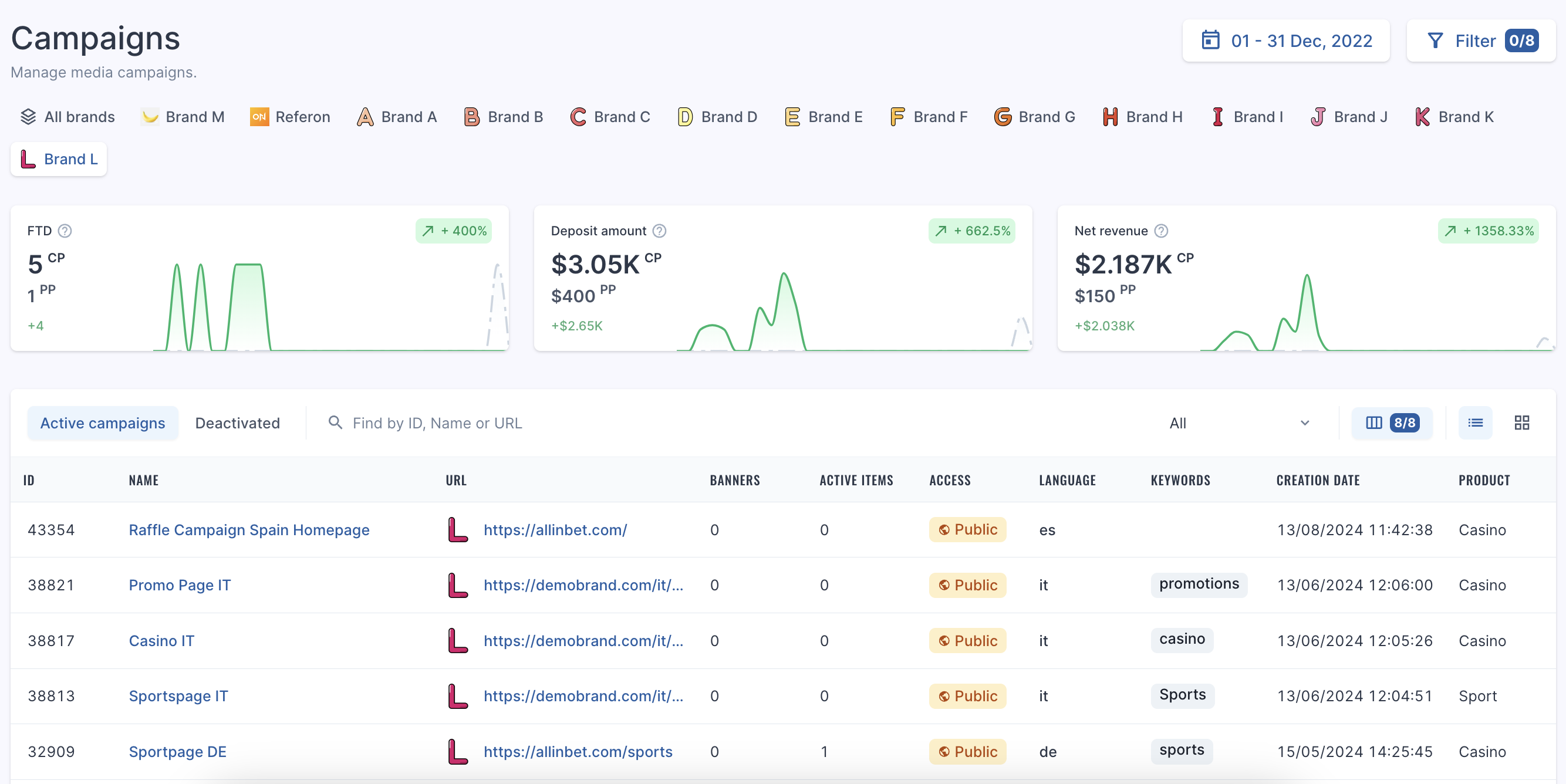
Here is where you can view all the current URLs or 'Campaigns' available in the system.

The following fields are shown:

- Campaign ID
- Campaign Name
- Banner Count
- URL
- Active Items
- Access
- Language
- Keywords
- Creation Date
- Product
<figure class="image" id="bkmrk-">![Screenshot%202024-08-19%20at%2015.30.28.png](https://help.referon.com/uploads/images/gallery/2026-09/0ce0aceca3ede4dc4ac602aa63c45931c8becd06.png)</figure>## Filters

The Filter on this page covers the following:

- Creation Period Date
- Count of media items
- Count of banners
- Product
- Campaign
- URL
- Language
- Access

<figure class="table" id="bkmrk-to-filter-by-brand%2C-"><table class="ck-table-resized"><colgroup><col></col><col></col></colgroup><tbody><tr><td><figure class="image image_resized">![Refie_hat.png](https://help.referon.com/uploads/images/gallery/2026-09/c18e057993675d146d72d8708b6aa649c4d58c41.png)</figure></td><td><p class="callout success">To filter by brand, you can select one or multiple of the brand names at the top of the page.</p>

</td></tr></tbody></table>

</figure>

# Media Items

Here you will find all media items of the entire system. Showing the following fields:

- Media Item ID
- Media Item Name
- Media Item Type
- Brand
- Reward Plan
- Campaign Name
- Affiliate Name and ID
- Company
- Traffic Type
- Traffic Type Group
- Marketing Source
- Geo
- Creation Date
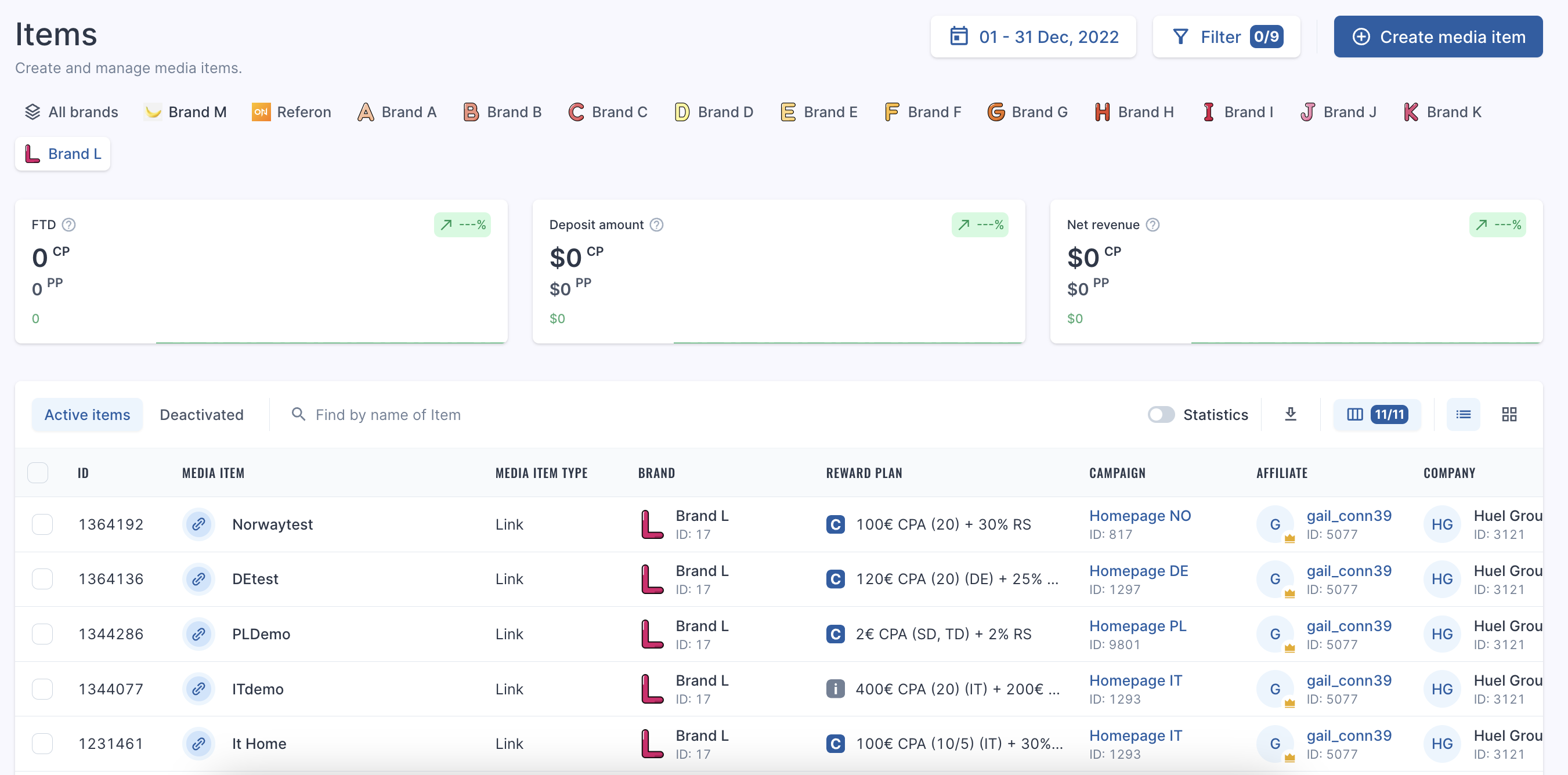
<figure class="table" id="bkmrk-the-statistics-toggl"><table class="ck-table-resized"><colgroup><col></col><col></col></colgroup><tbody><tr><td><figure class="image image_resized">![Refie_hat.png](https://help.referon.com/uploads/images/gallery/2026-09/d87ed3d6436dfb6873d865d8ace32cba712a74ae.png)</figure></td><td><p class="callout success">The Statistics toggle is also available.</p>

</td></tr></tbody></table>

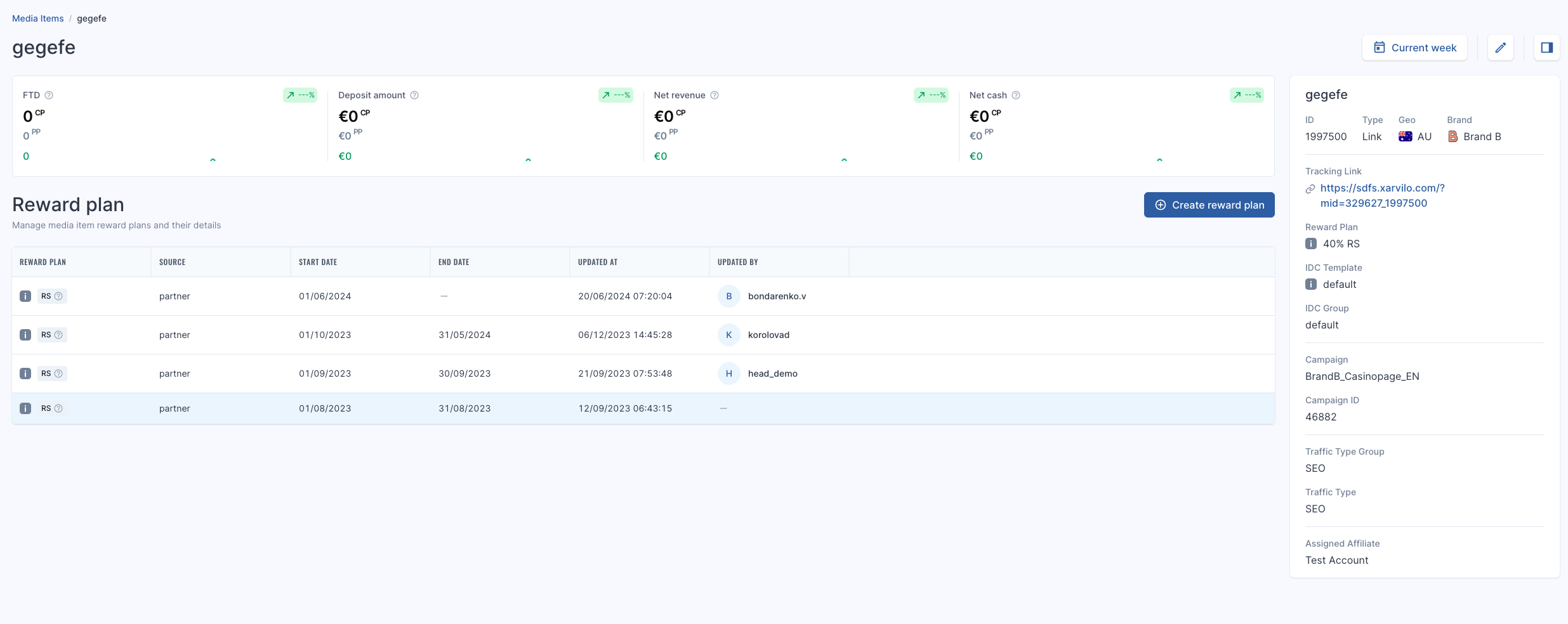
</figure><figure class="image" id="bkmrk-">![Screenshot%202024-08-19%20at%2015.31.17.png](https://help.referon.com/uploads/images/gallery/2026-09/8f6f6f3074c9e441eadcc94745facd803eeb0393.png)</figure>When a media item is created, a separate page is then available. The Media Item Name is clickable and will show the following:

**Reward Plan History**

This will provide the details of any changes of the deals, including when they started, they structure and when they stopped.

**Information**

To the right, you can then see the information of the media item, such as the tracking link, the plan, the traffic type, etcnot jeal
<figure class="image" id="bkmrk--1">![Screenshot%202025-12-29%20at%2014.57.17.png](https://help.referon.com/uploads/images/gallery/2026-09/2467934a019a7f01068b54d2da1911acaed4e366.png)</figure>

# Extracting a Tracking Link

Ensuring you are using the right link is very easy in ReferOn.

1. Navigate to Media - Campaigns or My Company - Campaigns.
2. From here, you will find all of the available campaigns that have been added to the system for the available brands for you.   
    <p class="callout info">From this page you can also change the date range selector to see your performance for all campaigns by FTDs, Deposit Amount and Net Revenue for the date range.</p>
3. From this window, you can choose to do a number of options:
    1. Use the quick search to find your campaign name
    2. Use the side filter
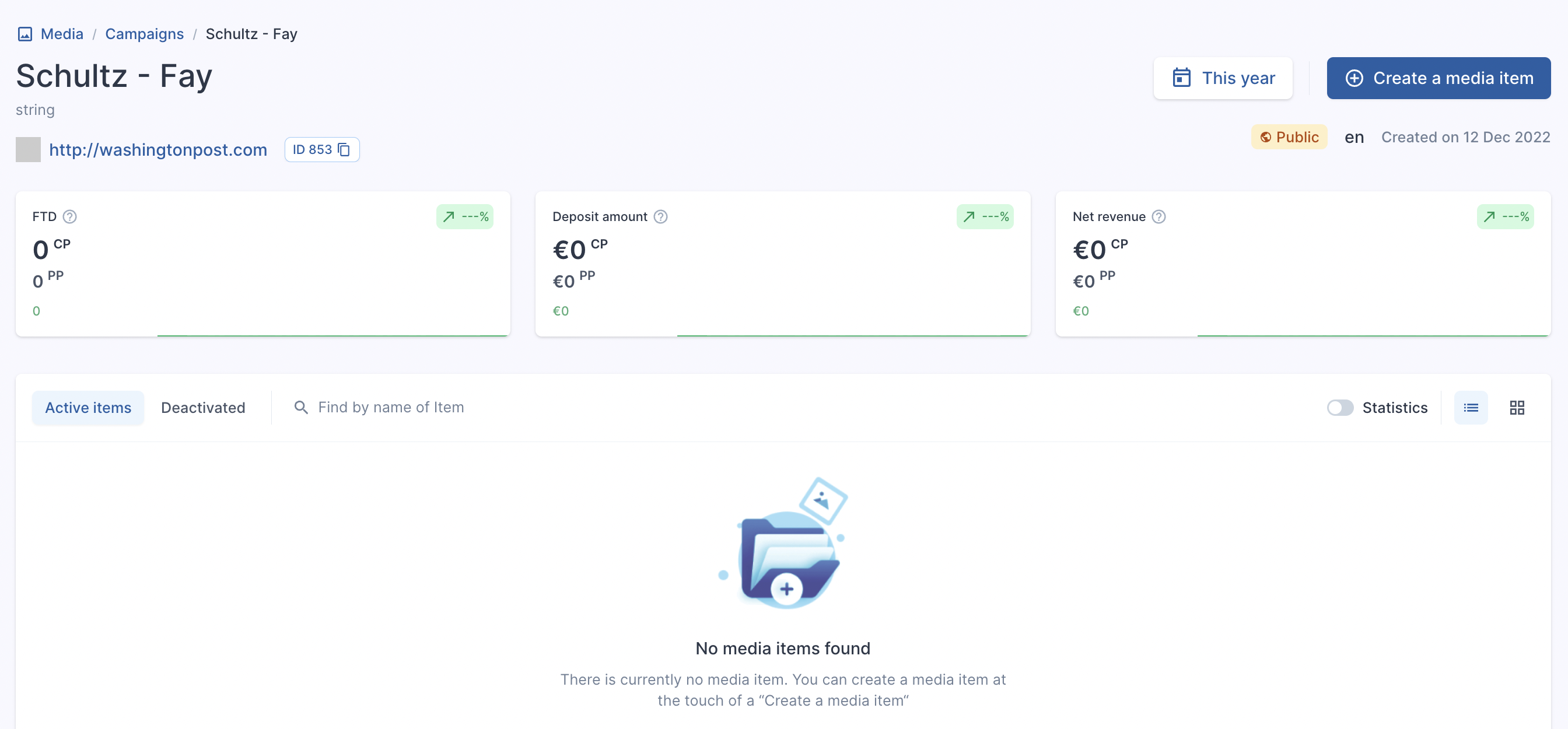
4. Once you have found your campaign, select the Campaign Name:  
      
    ![1683710641831-Screenshot%2B2022-12-26%2Bat%2B14.52.00.png](https://help.referon.com/uploads/images/gallery/2026-09/ef4853afb85911a7adafc2a2c30259e0889cf43e.png)
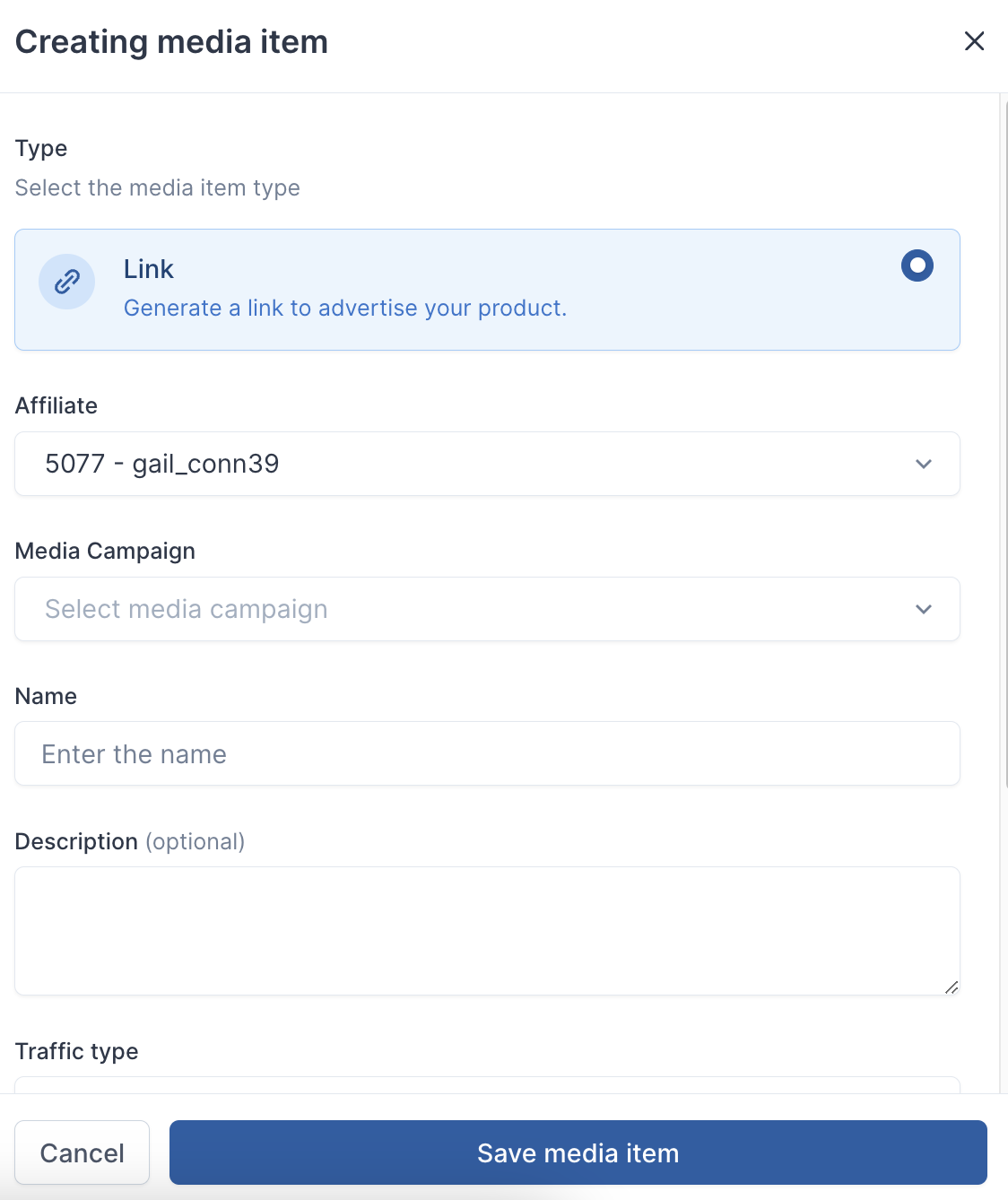
5. Select 'Create a media item':  
      
    ![Screenshot%202024-08-19%20at%2015.33.17.png](https://help.referon.com/uploads/images/gallery/2026-09/02fb73335f00f4c529e525eff0e5bc1a0ecbd966.png)
6. Fill in your desired:
    1. Select Affiliate (if at company level and via Media - Media Items)
    2. Name
    3. Description (optional)
    4. Marketing Source
    5. Traffic Type
    6. Geo
7. Click Save
8. Once created, scroll to the end and select the Copy icon and paste in the browser for tracking testing.


<figure class="image" id="bkmrk-">![Screenshot%202024-08-19%20at%2015.34.29.png](https://help.referon.com/uploads/images/gallery/2026-09/5d835f39b26c463a8bbf8dbb9c3bdce4e3fbefd7.png)</figure><figure class="image" id="bkmrk--1">![Screenshot%202024-08-19%20at%2015.34.12.png](https://help.referon.com/uploads/images/gallery/2026-09/a43ab17244e79189077bd88beab2c17fd2e81166.png)</figure><figure class="table" id="bkmrk-the-output-will-rese"><table class="ck-table-resized"><colgroup><col></col><col></col></colgroup><tbody><tr><td><figure class="image image_resized">![Refie_notice.png](https://help.referon.com/uploads/images/gallery/2026-09/cfb1ab875162f3691b639f4f3c703bc27e19b977.png)</figure></td><td><div class="callout info">The output will resemble something like this: [https:/ADSERVER.com/?mid=5081\_139901](https://total-inclusion.servclick1move.com/?mid=5081_139901)

The 'mid' parameter is split into two parts:

- Affiliate ID
- Media Item ID

This makes it transparent on which campaign and affiliate a tracker is being used.

Alternatively, you may also jump straight to Media - Media Items and create media item from there as well, but you will need to fill in the campaign column when creating the media item.

</div></td></tr></tbody></table>

</figure>## Video

<figure class="media" id="bkmrk-your-browser-does-no"><div><video controls="" src="https://help.referon.com/attachments/15?open=true" style="max-width:100%;">Your browser does not support HTML5 video.</video></div></figure>

# Extracting a Image Link

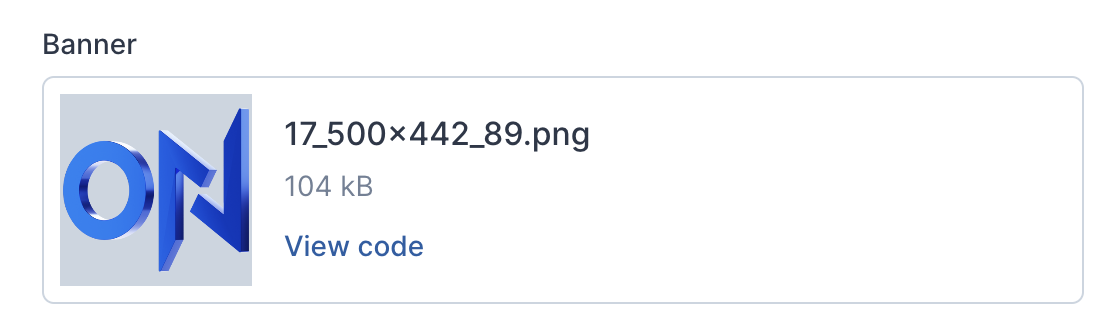
Varying slightly from extracting a tracking link, if you have uploaded banners and wish to extract the image link, you will need to follow the below steps;

1. Create/Edit Media Item
2. Click View code below the banner you have selected.  
      
    ![1697531321582-Screenshot%2B2023-10-17%2Bat%2B10.09.31.png](https://help.referon.com/uploads/images/gallery/2026-09/733807295ed351cea1d614df0f33d534bb5210a2.png)
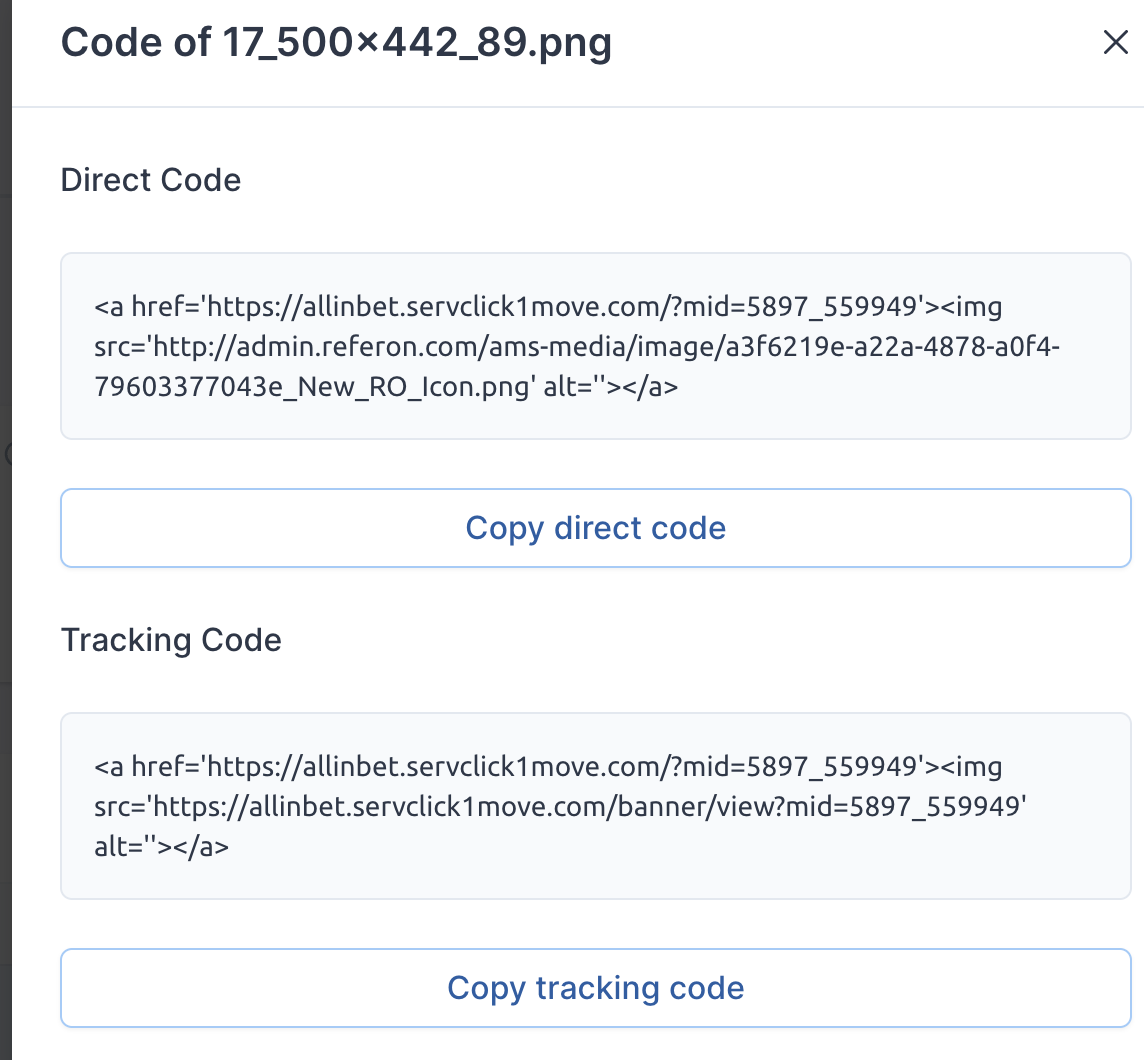
3. Extract the associated codes from there, depending on your needs.  
      
    ![1697531381440-Screenshot%2B2023-10-17%2Bat%2B10.09.36.png](https://help.referon.com/uploads/images/gallery/2026-09/830db5851e4bb3c0b11f43aa074ca9b5ba66cf3c.png)
4. Should you wish to use the campaign and tracker as a text link, you can continue to use the Copy Icon as per flow above.

<figure class="image image_resized" id="bkmrk-">![Refie_hat.png](https://help.referon.com/uploads/images/gallery/2026-09/d59894e091f5328f461e021a353912bb4d49347b.png)</figure>

# Relative Path Functionality

This allows users to add relative URLs to an existing tracker. This is useful for adjusting the channel of the link, such specific sport pages without needing to create a new tracker.

<figure class="table" id="bkmrk-this-is-not-the-same"><table class="ck-table-resized"><colgroup><col></col><col></col></colgroup><tbody><tr><td><figure class="image image_resized">![Refie_attention.png](https://help.referon.com/uploads/images/gallery/2026-09/a34623e6161de148716649acf43126166cf5070d.png)</figure></td><td><p class="callout warning">This is not the same as common &amp;redirectURL additions, which allows any URL to be used and redirected but instead allows subpages of the existing domain.</p>

</td></tr></tbody></table>

</figure>Example:

https://EXAMPLE.servclick1move.com/?mid=12345\_1395807&amp;relativepath=ar/game/plinko-v2

In the above example, the original campaign of Homepage AR will instead go to Plinko game on the brand.

# Marketing Sources

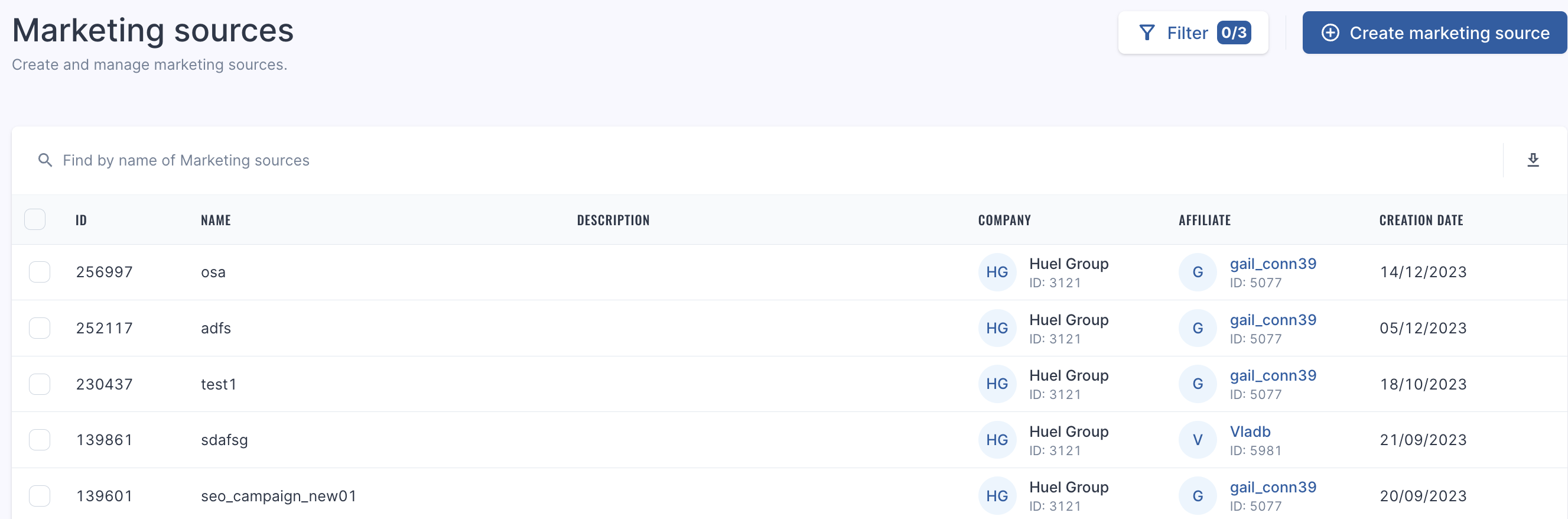
In addition to creating marketing sources on the fly via Media item creation. You may also manage your marketing sources in this section. You can easily edit, create and delete any marketing source tag for your trackers.

<figure class="image" id="bkmrk-">![Screenshot%202024-08-19%20at%2015.50.34.png](https://help.referon.com/uploads/images/gallery/2026-09/58699383987500c1ea3afbcaec80b58736d5079d.png)</figure><figure class="image image_resized" id="bkmrk--1">![Refie_watch.png](https://help.referon.com/uploads/images/gallery/2026-09/5f0c02d2877f99fe191491d14892aaa97eb8f104.png)</figure>

# Postbacks (S2S Pixels)

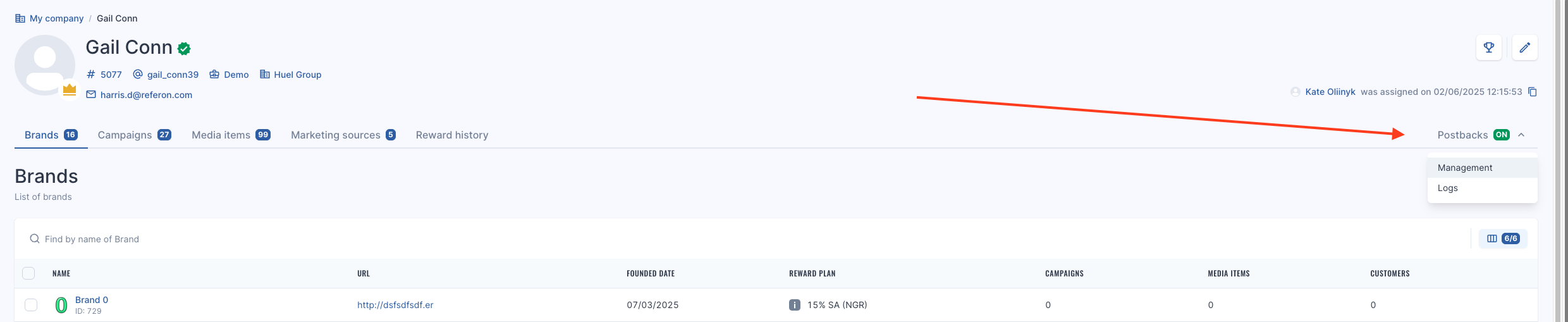
Postbacks

<figure class="table" id="bkmrk-if-you-do-not-see-th"><table class="ck-table-resized"><colgroup><col></col><col></col></colgroup><tbody><tr><td><figure class="image">![Refie_Investigate.png](https://help.referon.com/uploads/images/gallery/2026-09/a84b647a87ebe17551744ddca9aa65f5b87afd77.png)</figure></td><td><p class="callout warning">If you do not see this feature, please contact your affiliate manager to enable it for you. After you will see the screen as below:</p>

</td></tr></tbody></table>

</figure><figure class="image" id="bkmrk-">![Screenshot%202025-11-05%20at%2012.05.46.png](https://help.referon.com/uploads/images/gallery/2026-09/63f6289231d7416dfb08242d1161cffc398ff906.png)</figure>There are 2 main tabs:

1. Management
2. Logs

### Management

Here is where you can add your Postbacks.

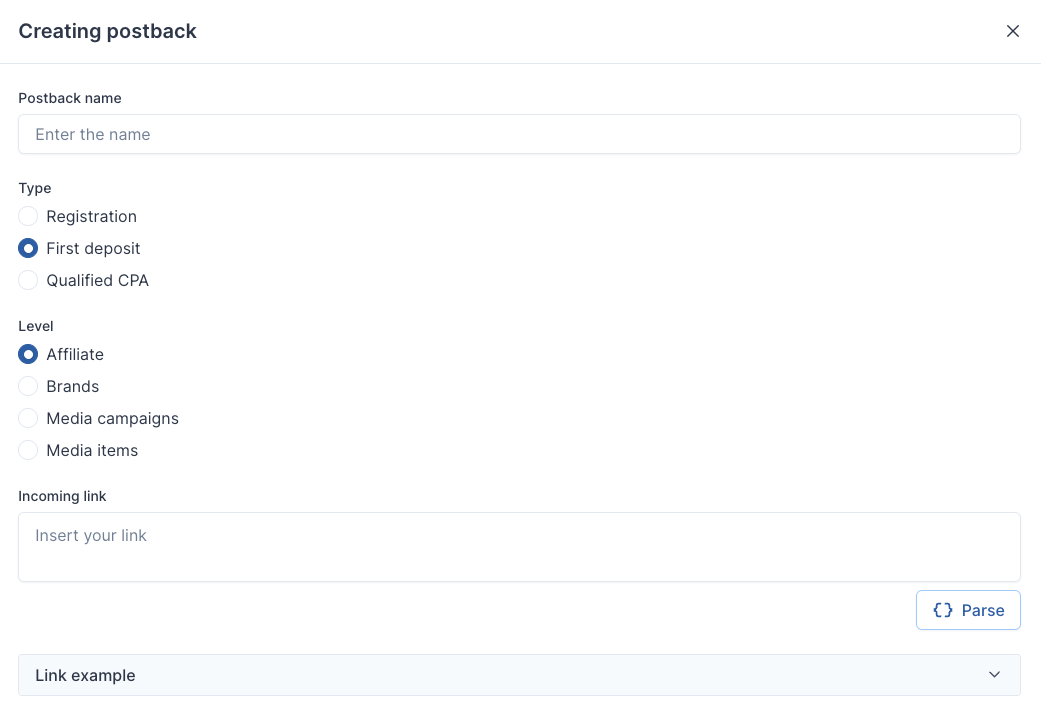
<figure class="image" id="bkmrk--1">![Screenshot%202025-05-22%20at%2013.26.00.png](https://help.referon.com/uploads/images/gallery/2026-09/8462857962de0041d789852452d3df18b7131fe5.png)</figure>To add your postback, follow the below steps:

- Click Create Postback
- Add Postback Name
- Select the type
    - Registration
    - First Deposit
    - Qualified CPA  
          
        <p class="callout warning">Note: Qualified CPA is based on data frequency as it needs to check the reward plan structure and threshold before sending.</p>
- Select the level
    - Affiliate
    - Brand
    - Media Campaigns
    - Media Items  
          
        <p class="callout info">This function allows you set different URLs for different levels in your account. Perhaps you have an identifier, such as Event or Campaign ID for a particular tracker.</p>
- Insert the URL
- Click Parse  
      
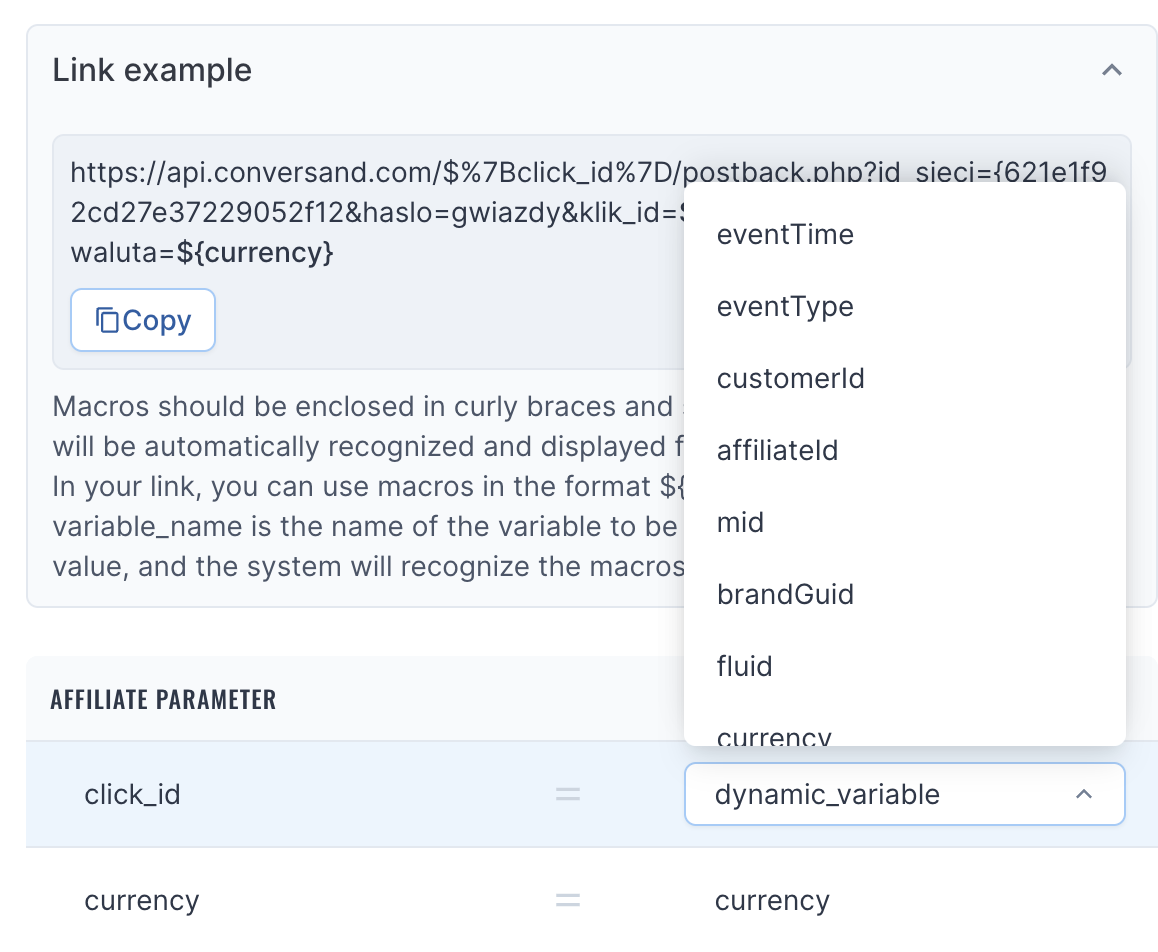
    <div class="callout warning">When parsing the URL, you have the option of selecting automatic parameters, such as:
    
    EventTime
    
    EventType
    
    CustomerID
    
    Affiliate ID
    
    MID
    
    BrandGUID
    
    Fluid
    
    Currency
    
    Dynamic Variables
    
    **Note**: Deposit amount and CPA amount need to be requested by your affiliate manager as some platforms have not fully integrated postbacks into Referon and need to be asked.
    
    </div>
- Click Save Changes
- Repeat for each Type you need.
<figure class="image" id="bkmrk--2">![Screenshot%202025-05-22%20at%2013.26.52.png](https://help.referon.com/uploads/images/gallery/2026-09/c18baf03dc15c9bfd71e06b3e8e68692f98e6296.png)</figure>### Logs

When an event occurs, these will then show in the Logs as they happen.

<figure class="image" id="bkmrk--3">![Screenshot%202025-05-22%20at%2013.34.20.png](https://help.referon.com/uploads/images/gallery/2026-09/c3d005789ad8c7ccab5a6a1c59fc3a16fc474056.png)</figure>- Event time
- Event type
- customerID
- Affiliate ID
- MID
- brand guid
- fluid
- currency
- dynamic variables
<figure class="image" id="bkmrk--4">![Screenshot%202026-07-22%20at%2009.10.47.png](https://help.referon.com/uploads/images/gallery/2026-09/b2622143a2b74ee60b39cd54922cd573f4366e90.png)</figure>- Event time
- Event Type
- Customer ID
- Affiliate ID
- MID
- Brand Guid
- Fluid
- Currency
- Dynamic Variable  
      
    Note: Deposit amount and CPA amount can be requested by your affiliate manager. Some platforms have not connected postbacks fully, so we do not show it to affiliates at this stage to avoid any issues

# Bulk Actions

There are a number of bulk actions that can be done on the Media Item page:

- Change Geo
- Change Traffic Type
- Change Marketing Source

<figure class="table" id="bkmrk-change-marketing-sou"><table class="ck-table-resized"><colgroup><col></col><col></col></colgroup><tbody><tr><td><figure class="image image_resized">![Refie_notice.png](https://help.referon.com/uploads/images/gallery/2026-09/4234d7b290721a71deb9c366b74eb1a5fa78a81d.png)</figure></td><td><p class="callout warning">Change Marketing Source is only allowed for items within the same affiliate account. Greyed out option can only appear when using the Company Level and reviewing items across multiple accounts.</p>

</td></tr></tbody></table>

</figure><figure class="image" id="bkmrk-">![1708501861956-Screenshot%2B2024-02-21%2Bat%2B08.50.58.png](https://help.referon.com/uploads/images/gallery/2026-09/8db14ebdddf04a699d298f3ba788810088c3d9a4.png)</figure>