# Adjusting Payment Methods

<figure class="table" id="bkmrk-this-area-is-only-fo"><table class="ck-table-resized"><colgroup><col></col><col></col></colgroup><tbody><tr><td><figure class="image">![Refie_attention.png](https://help.referon.com/uploads/images/gallery/2026-09/bc3bde20b286b07ae46a05a3c9db084f83a8fc64.png)</figure></td><td><div class="callout warning">This area is only for Company / Master Level access.

To adjust the payment method, the company Master account MUST have 2FA enabled.

</div></td></tr></tbody></table>

</figure>Within ReferOn, a company can contain multiple methods for their affiliates allowing flexibility in payouts for example if some affiliates in a network need bank wire but others need cryptocurrency.

To set up your payment methods, follow the below instructions:

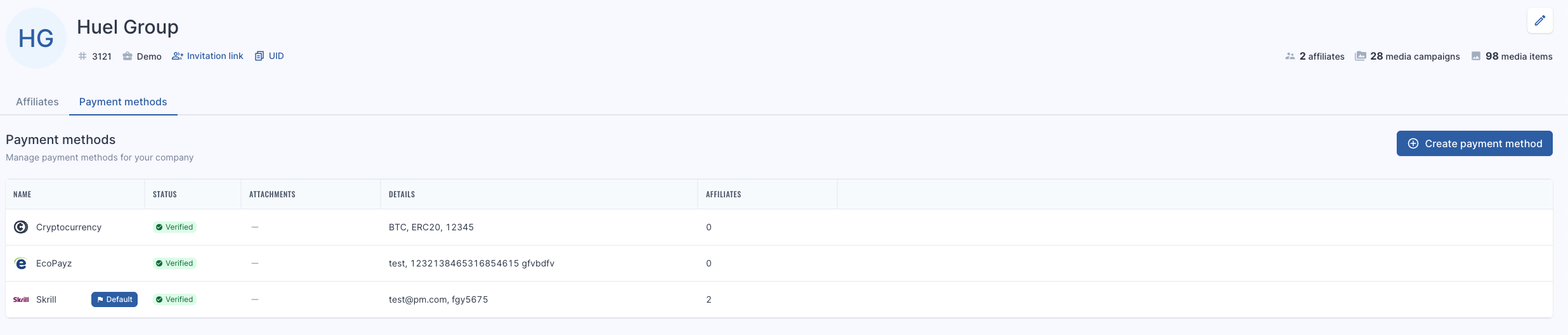
1. The company level access or Master user must first add the applicable payment methods via Payment methods tab by clicking ‘Create Payment Method’.  
      
    ![Screenshot%202025-06-18%20at%2016.32.28.png](https://help.referon.com/uploads/images/gallery/2026-09/e3cd1a4db82ed104d62a0af956c3d04579a8522d.png)
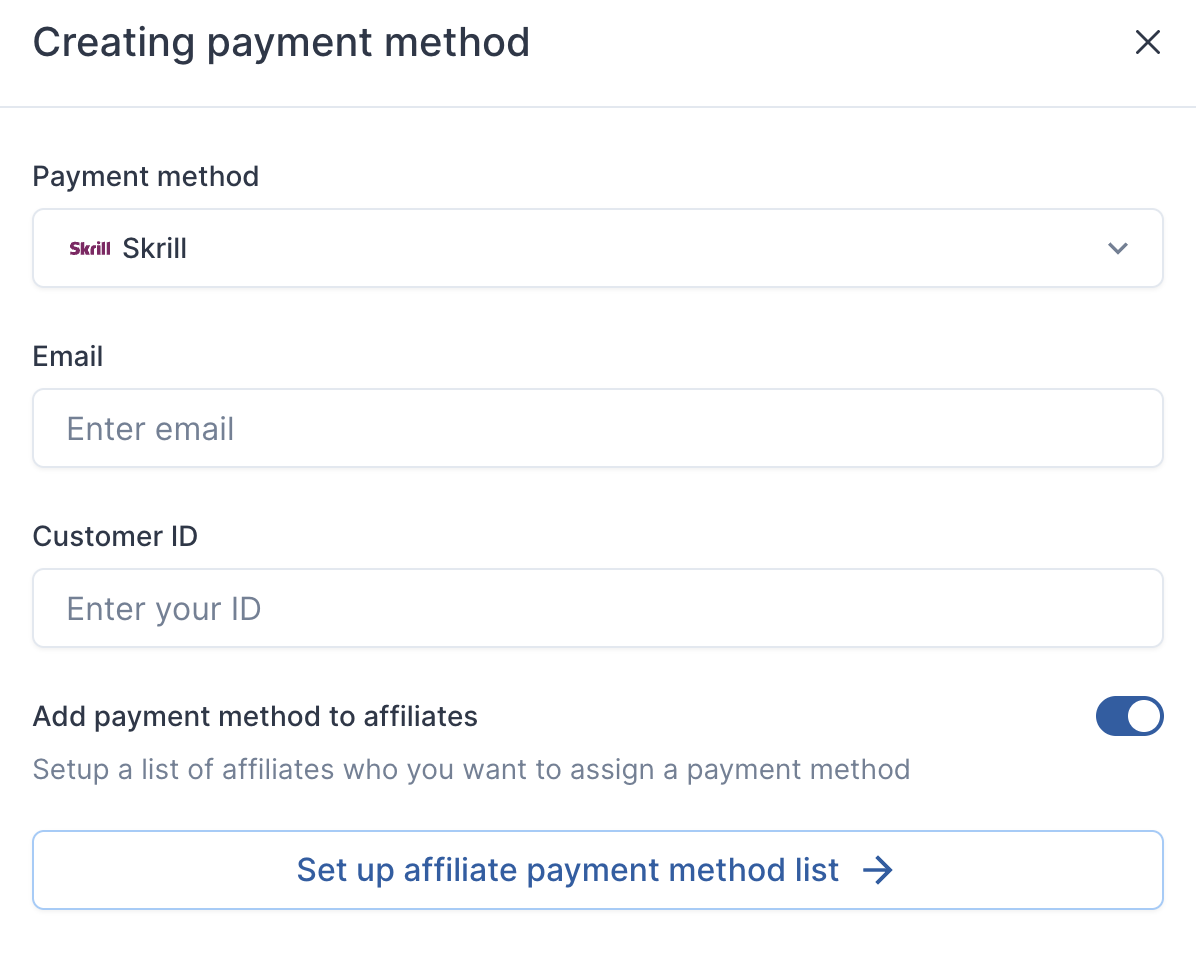
2. Add the associated details and toggle ‘Add payment method to affiliates’ to set up payment method for the affiliates in the company.  
      
    ![Screenshot%202025-09-03%20at%2009.33.36.png](https://help.referon.com/uploads/images/gallery/2026-09/e24811f781f08f3224d092488e4caea885e0de39.png)
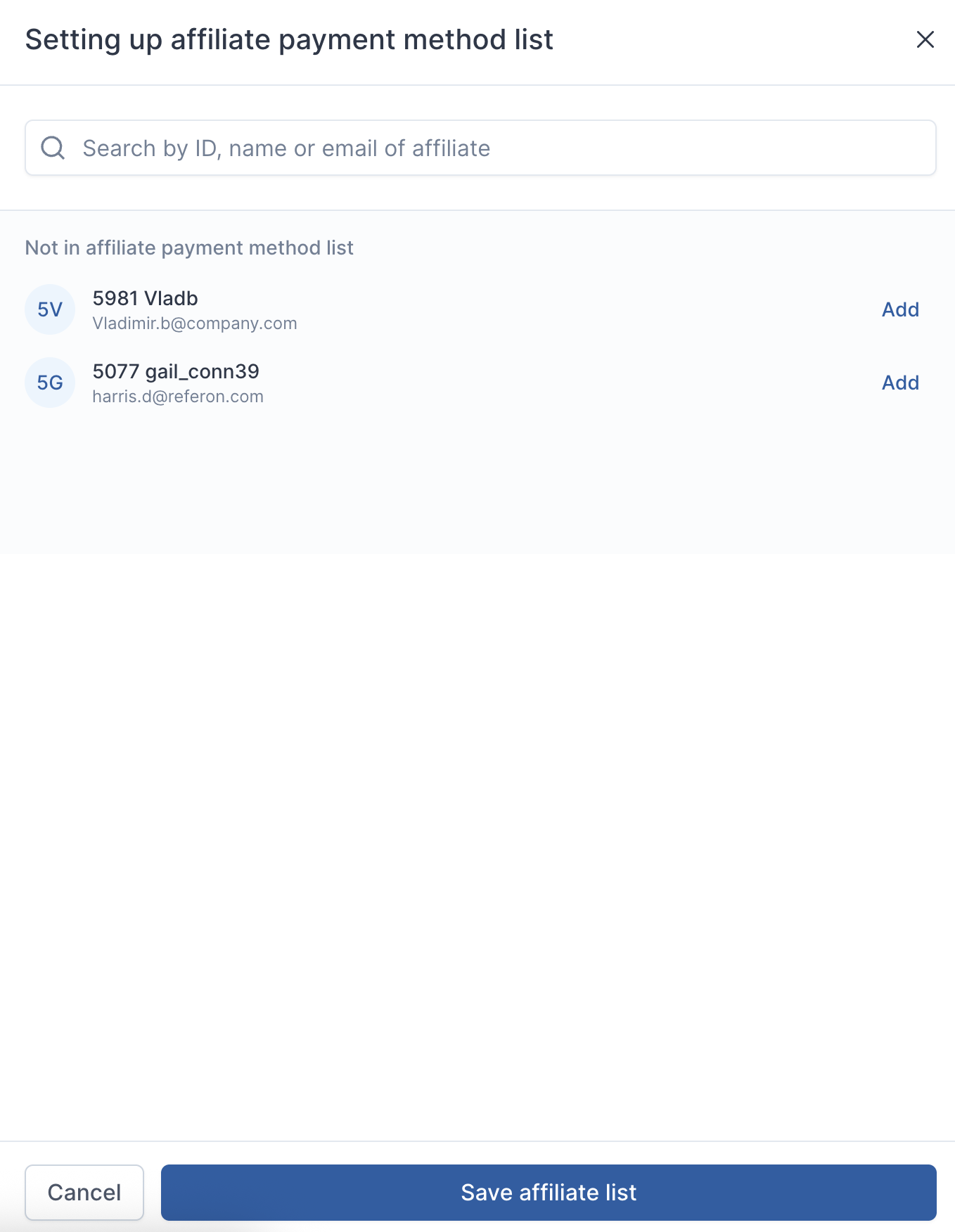
3. Add payment method to the affiliates and click ‘Save affiliate list’  
    ![Screenshot%202025-09-03%20at%2010.58.27.png](https://help.referon.com/uploads/images/gallery/2026-09/ae34bf84cc1c69763d9ebb5e0e9e033a1799234d.png)  
      
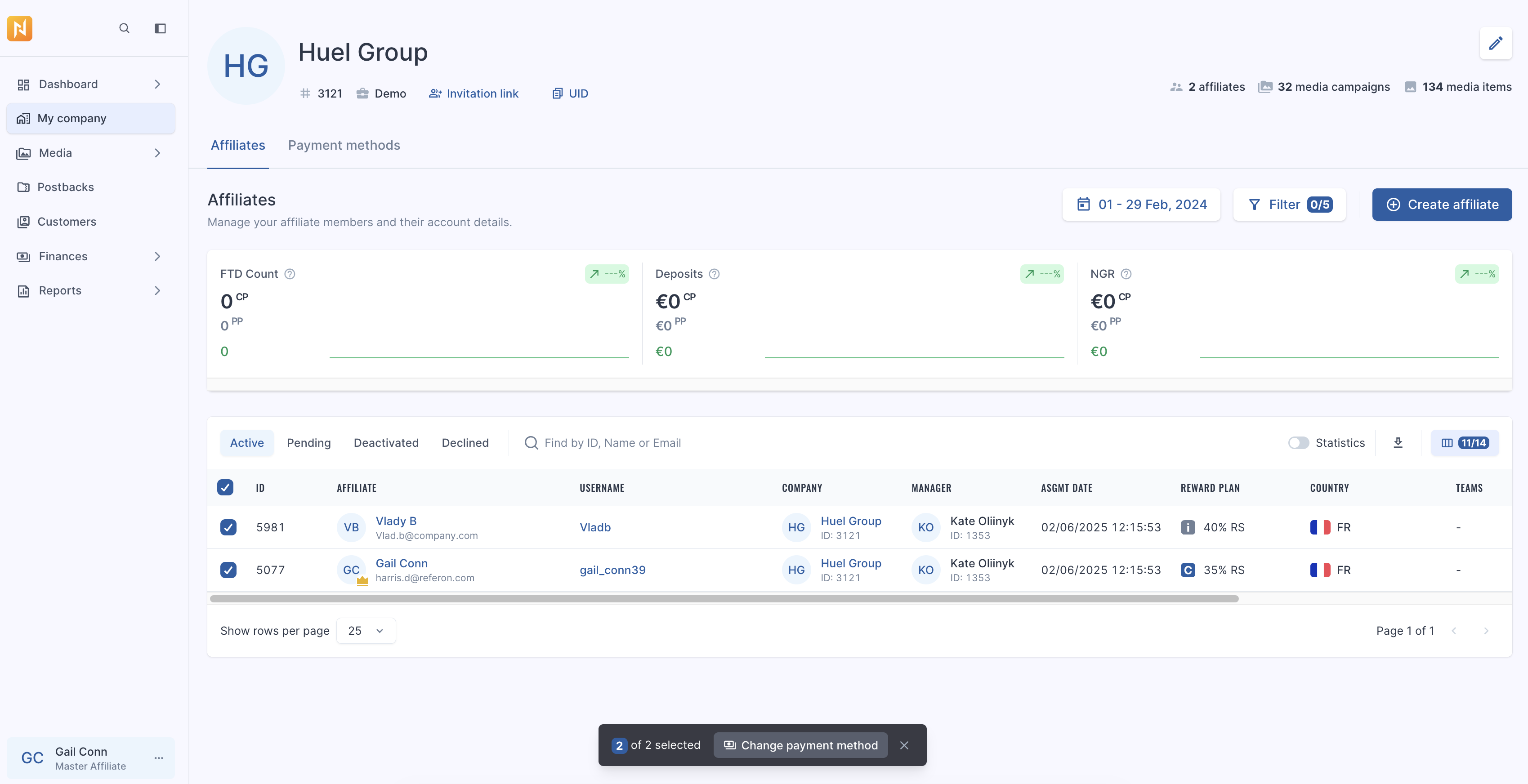
    Alternatively, payment methods can be assigned to affiliates in the company individually or in bulk via ‘Change Payment Method’ in the ‘My Company’ screen in ‘Affiliates’ tab.  
      
    ![Screenshot%202026-03-17%20at%2013.48.47.png](https://help.referon.com/uploads/images/gallery/2026-09/f96b8a4dc8db6ecd170b6621b41d3bb9e465a87b.png)
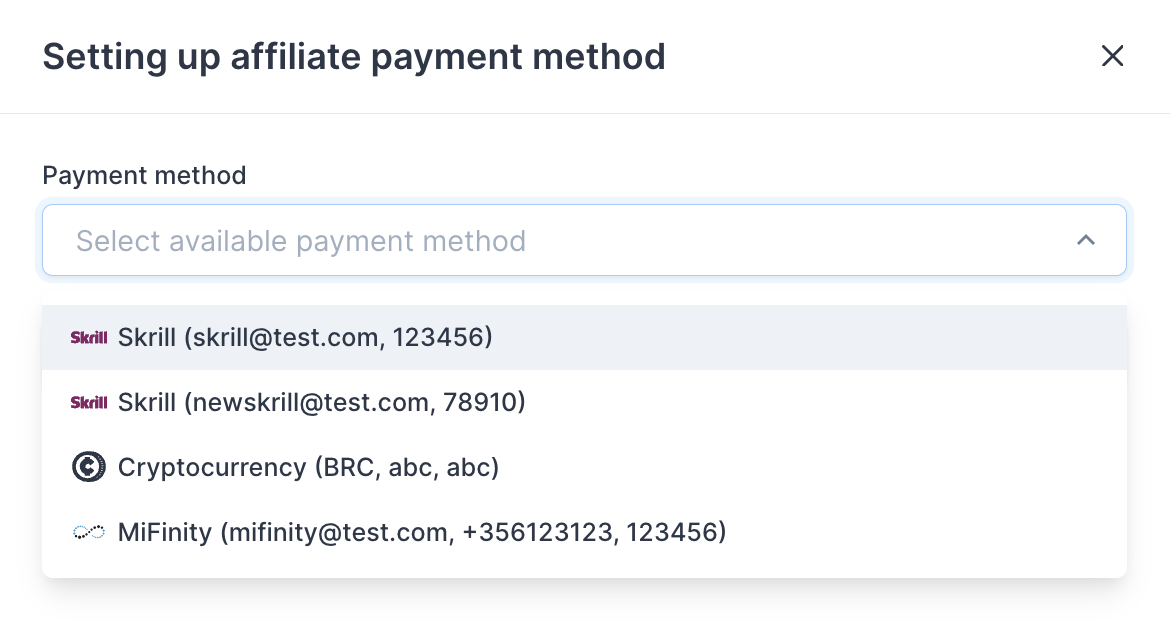
4. Select the appropriate method.  
      
    ![Screenshot%202024-07-03%20at%2016.07.11.png](https://help.referon.com/uploads/images/gallery/2026-09/613757f235c821f1f09b2a46edfc2dafa6c64b57.png)
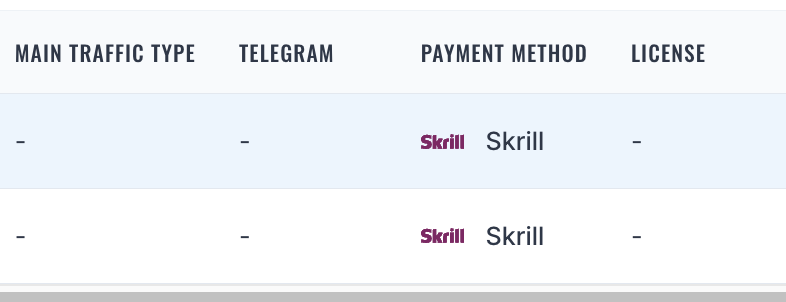
5. The method will then show in the My Company screen.  
      
    ![Screenshot%202024-07-03%20at%2016.07.41.png](https://help.referon.com/uploads/images/gallery/2026-09/67b8549c78642d4ef7cdc438e450f548540649c0.png)
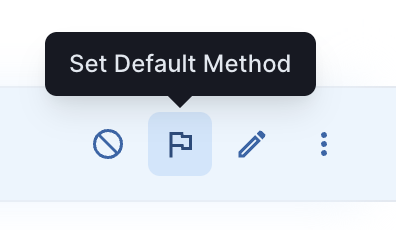
6. To set a particular payment method as a default method, go to Payment methods tab, hover the line and click “Set Default Method”.  
    ![Screenshot%202025-06-17%20at%2012.43.28.png](https://help.referon.com/uploads/images/gallery/2026-09/fa05e6bf6b14ec4f8b8d040fb31bb6cd86f13224.png)

# Video

<figure class="media" id="bkmrk-your-browser-does-no"><div><video controls="" src="https://help.referon.com/attachments/19?open=true" style="max-width:100%;">Your browser does not support HTML5 video.</video></div></figure>